Loading...
Loading...
Loading...
Loading...
Loading...
Loading...
Loading...
Loading...
Loading...
Loading...
Loading...
Loading...
Loading...
Loading...
Loading...
Loading...
Loading...
Loading...
Loading...
Loading...
Loading...
Loading...
Loading...
Loading...
Loading...
Loading...
Loading...
Loading...
Loading...
Loading...
Loading...
Loading...
Loading...
Loading...
Loading...
This page describes how to view your JFrog Connect account settings.
When you subscribe to JFrog Connect, your username, password, and other account settings are set up by default and managed as a JFrog Platform account. In the Connect Account tab, you can view your Connect account settings.
To view your account information, go to Settings in the left navigation tree and click the Account tab.
In the Account tab, you can view your general settings and your current subscription settings and limits.
Learn how to .
In JFrog Connect, you can export the audit log in either CSV or JSON format.
JFrog Connect enables you to export an to a file, which can be in either CSV or JSON format. The data you can export includes the last 30 days, and there is no limit on the file size.
Exporting the audit log is available to customers who have and to Administrator users only.
To export data from the audit log, do the following:
Go to Settings, and click the Audit Log tab.
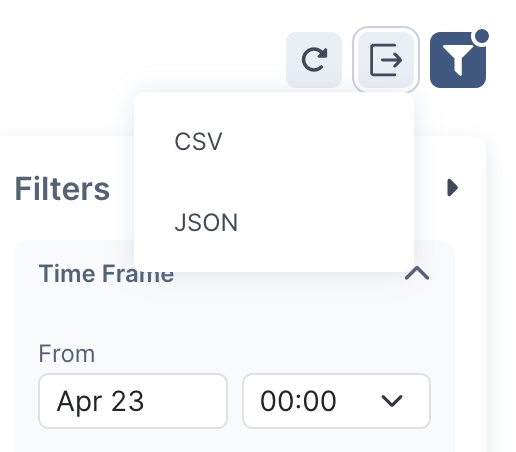
Click the export icon on the top right of the table.
Choose the data format for the file. The file will download and will automatically be compressed as a GZIP file.
The following is an example of the columns and data output in the CSV file. This example is displayed in Google Sheets.
The columns in the CSV file appear slightly differently from the columns that appear in the web UI.
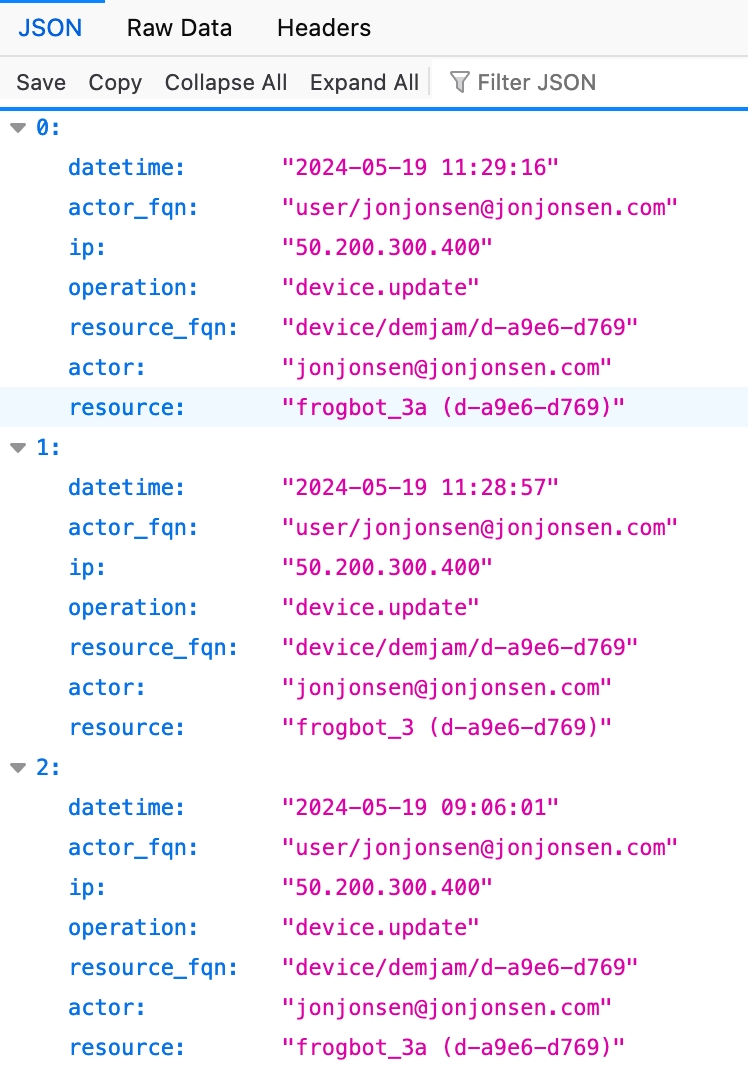
Actor_fqn shows the actor type (e.g., user, device, API), a slash, and then the user’s email or UUID. In the table in the web UI, this information is presented in two separate columns: Actor Type and Actor.
Operation shows the resource category (e.g., Device, App, Alert channel), a period, and then and then the action, e.g., device.update. The web UI displays this as the Resource Type and the Event columns.
Resource_fqn is a combination of the Resource Type (e.g., device), the Project (e.g., demjam), and the Resource columns in the web UI. The Resource is represented by a UUID.
The following is an example of three records in an exported JSON file. This uses Actor_fqn, Operation, and Resource_fqn as keys, and the values are as described above.
Learn more about how you can receive alerts for specific kinds of events or conditions on your edge devices.
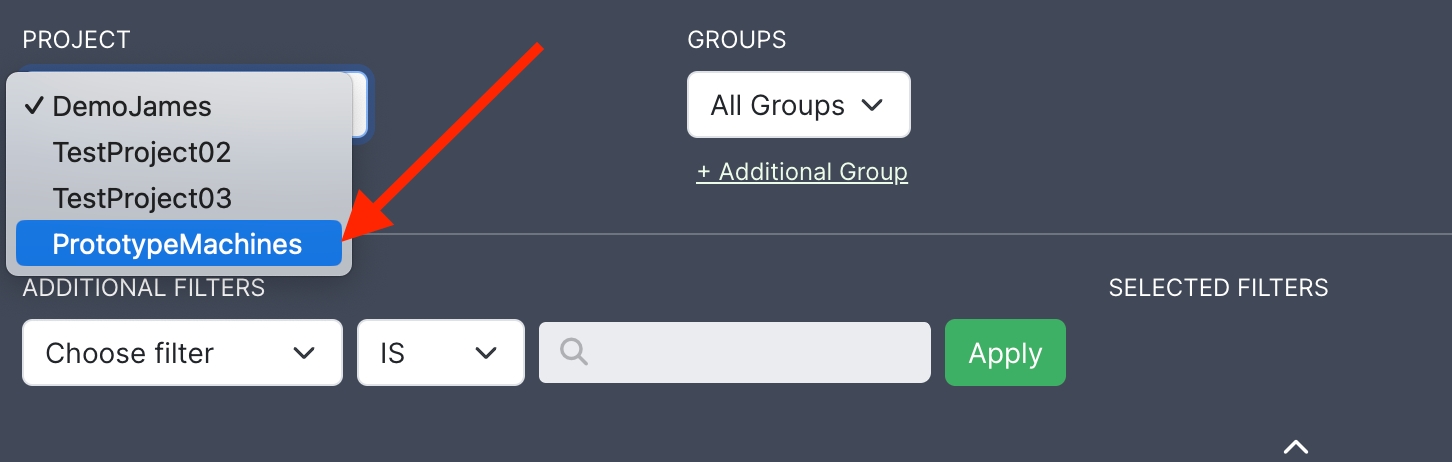
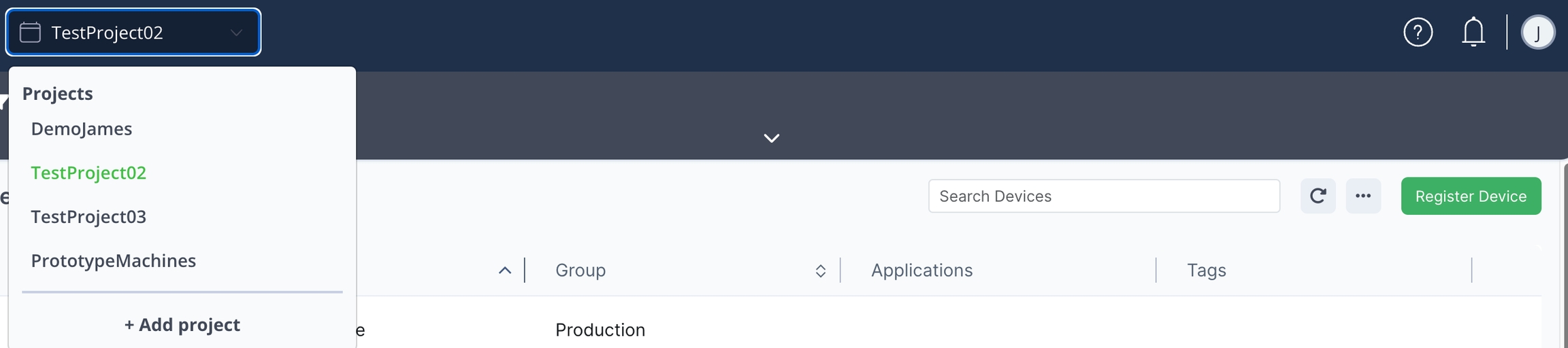
If you have more than one project in your account, choose the project in the filter on the top left. The page will display the project settings and permissions for the project you choose.
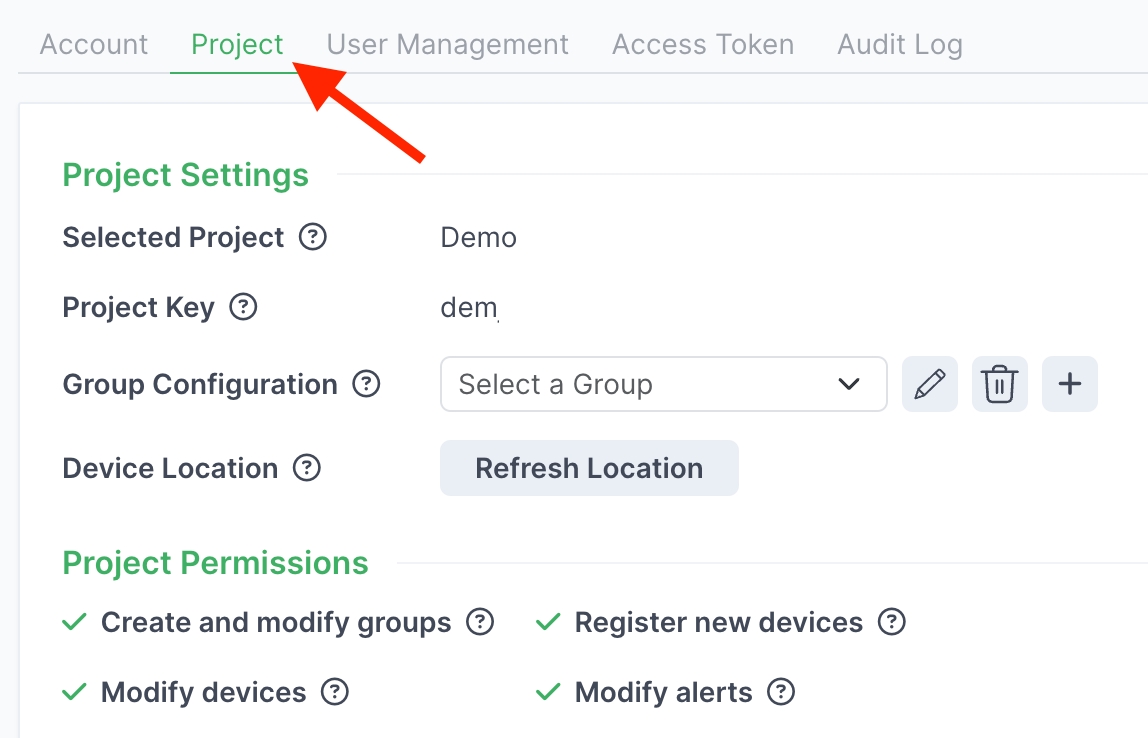
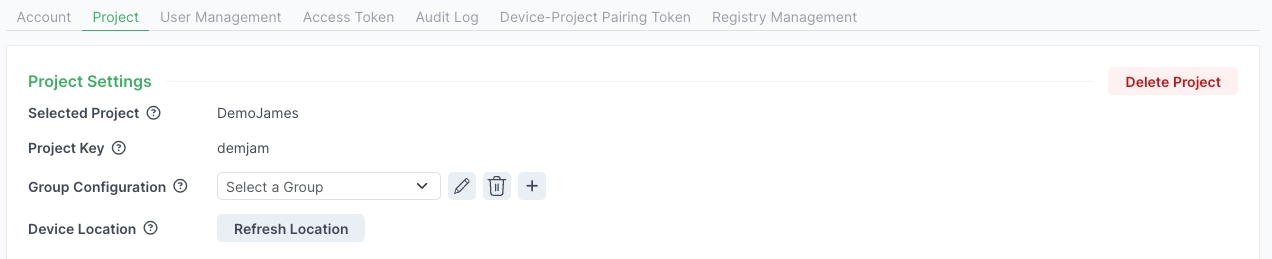
To change the configuration settings for a project, go to Settings in the left navigation tree and then click the Project tab. You can change the following:
Group Configuration: Change the name of a group, delete a group, or create (+) a new group.
Device Location: Refresh the device location.
For more information about any of the items above, click the relevant link.
Learn how to create and manage users in your account.
If you are a JFrog Connect user, you can use the JFrog Platform to set up multi-factor authentication.
Your JFrog Connect account will be more secure if you use multi-factor authentication (MFA) for logging in. The login information for your account is managed by the JFrog Platform, so you will use the platform to set this up.
Before you begin this procedure, install the Google Authenticator on your mobile device. You can find it in the Google Play Store.
To set up MFA, do the following:
In Connect, at the bottom of the left navigation pane, click JFrog Platform. JFrog Platform will open in a new tab in your browser.
Complete the JFrog Platform procedure .
Learn how to view and .
Take a user out of a project in JFrog Connect.
In the lifetime of a project, enables you to add and remove non-administrator users from the project as needed. Other administrators cannot be removed from a project.
To remove a user from a project, do the following:
In Settings, go to the User Permissions tab, click the three dots for the user on the right side of the table, and click Edit.
Under Project Access, choose the relevant project from the dropdown list.
Once you have paired a device with a project in JFrog Connect, you can unpair the device by revoking the pairing token. You will need to re-register the device to connect to it again.
If you want to make a device unreachable by JFrog Connect, you can revoke its device-project pairing token. When the device-project pairing token is revoked, the edge device will no longer be able to connect to the Connect server. You will need to re-register the device to connect to it again.
To revoke a device-project pairing token, do the following:
Click Remove Access.
You can always grant access to the user again if you need to.
Learn how to delete a project.

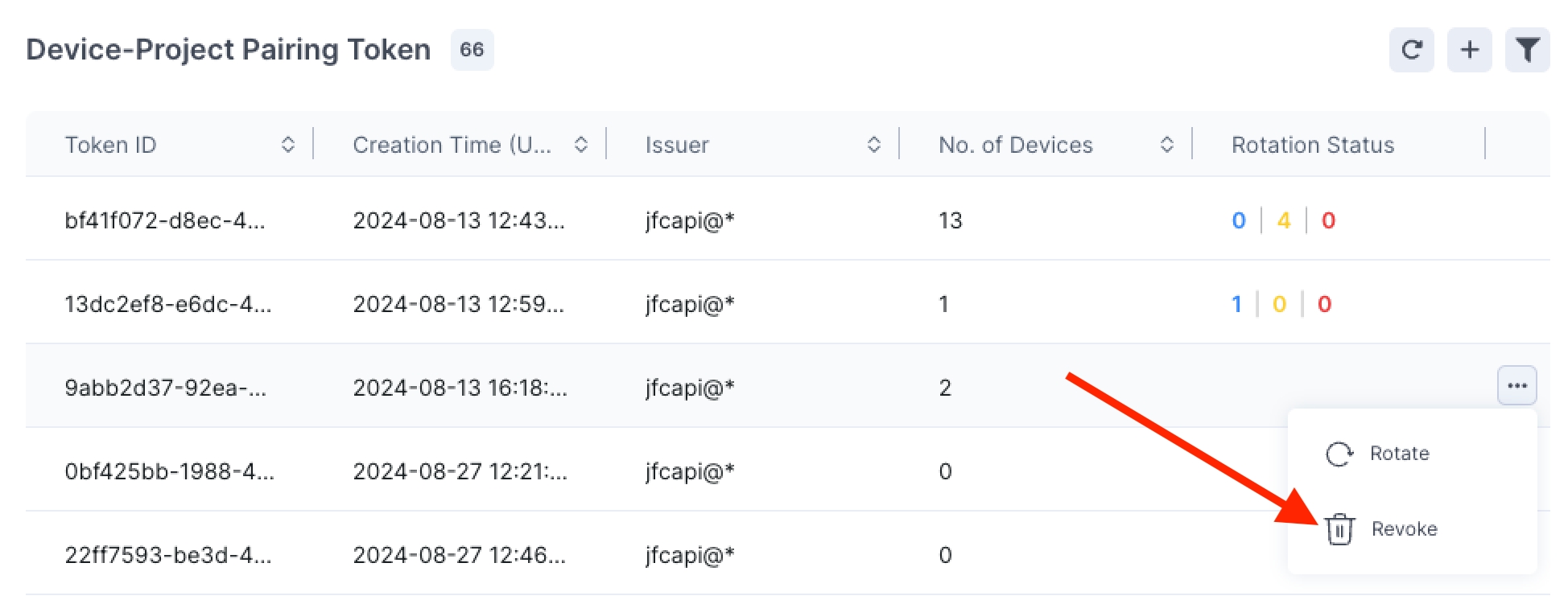
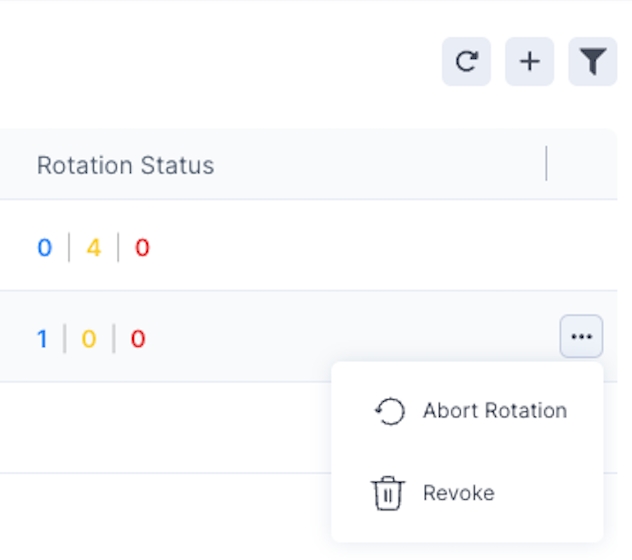
In the row of the relevant Token ID, click the three dots on the far right and click Revoke.
When prompted, confirm the revocation.
When a device has had its pairing token revoked, you need to re-register the device to get it back online. Learn how to register a device.
New users are created in the JFrog Platform.
An administrator user in JFrog Connect is a user that has the Administrator role defined in JFrog Platform. An administrator has access to all functions and features in Connect and can perform various management tasks such as creating, viewing, editing, and deleting of non-admin users. In addition, there are certain features in Connect, e.g. Audit Log, that by definition only the admin user has access to.
New JFrog Connect users are created in the JFrog Platform.
To create a new user from scratch, start with Step 1 in the procedure below.
If the user already exists in the Platform, and you just want to add the user to Connect, start with Step 2 in the procedure below.
Go to the Platform User Management settings and create a new user according to the procedure described Create or Edit Users. When you create the new user, under Roles, mark Administer Platform.
For the user to be an administrator in Connect, the user must be an administrator in the Platform. In the list of Users in JFrog Platform, search for the user and ensure that the user is already indicated as an administrator.
Go to Settings and User Permissions in Connect and verify that the user appears in the Connect list of users and is indicated as an administrator.
Tip: There is no need to assign the new user to projects in Connect. As an administrator, the user will by definition have access to all Connect projects and all permissions in each project.
If the new user has not yet received login credentials for the Platform, give the username and password to the user.
The new user is now ready to to the Platform and start using Connect.
Learn more how to in Connect.
Define registries and access scoping for projects in JFrog Connect.
When you use JFrog Connect to deploy software to edge or IoT devices, the Connect Agent pulls the software image from a designated registry (such as JFrog Registry, Git, or DockerHub) where the image is stored.
When you use Connect for the first time, one JFrog registry is already configured in Artifactory. Before you can use this registry, you have to define the access scoping. For any additional JFrog registries that you create, you will follow a simple two-step process:
Add the JFrog registry.
Configure Artifactory Access Scoping for that registry.
This process ensures that you have proper access controls in place for effective management of your software deployment.
To define registries in addition to the default registry, use the procedures as indicated below. Registries that are not JFrog do not include access scoping.
Learn how to add an to your first JFrog registry and to additional JFrog registries.
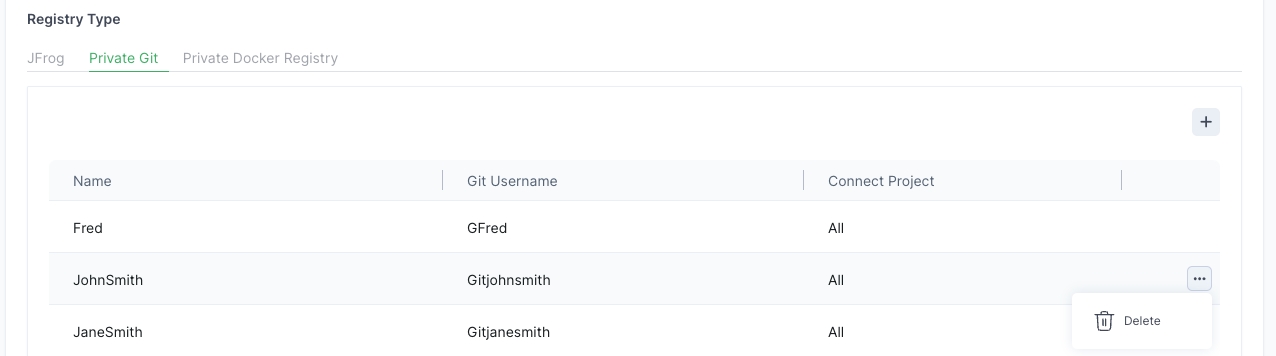
Delete a JFrog Connect link to a private Git registry.
Descriptions of the project permissions that JFrog Connect users can have.
When you in , you have to assign project permissions to the user. The table below provides descriptions of the project-specific permissions that you may assign.
Add a JFrog registry to use with JFrog Connect.
When you start using JFrog Connect, one default JFrog registry will already be defined. You can add more registries at any time.
There are two sub-types of JFrog registries, Artifactory and . Use this procedure to add either sub-type.
Either Administrator role or permissions for Create and Modify Projects.
Create a new device-project pairing token in JFrog Connect.
If you are a JFrog Connect user, you can change your Connect password using the JFrog Platform.
Your password for is managed by the JFrog Platform. Therefore, to change your Connect password, you need to change it in the Platform.
To change your Connect password, do the following:
In Connect, at the bottom of the left navigation pane, click JFrog Platform. JFrog Platform will open in a new tab in your browser.
In JFrog Platform, click the User Menu icon in the upper right corner of the page, then choose Edit Profile.
Stop a Device-Project Pairing token rotation once it has started.
You can abort on any devices that have a rotation status of Pending. When you abort a token rotation, the action does the following:
Ensures that devices that are pending rotation will not be rotated.
Does not stop rotation in devices that are currently in the process of rotation.
Does not roll back devices that have already rotated the tokens.
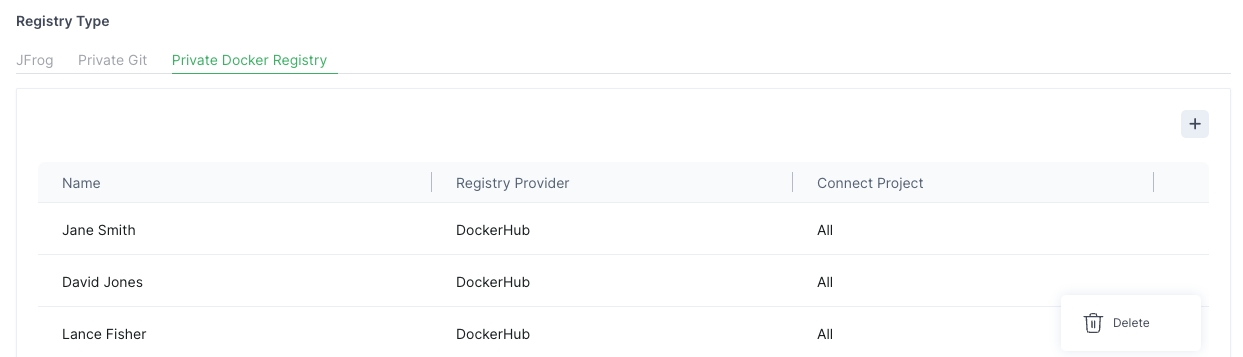
Delete a JFrog Connect link to a private Docker registry.
To delete a connection to a private Docker registry, do the following:
In Settings, go to Registry Management and click the Private Docker Registry tab.
In the row of the relevant private Docker registry, click the three dots on the right side and then click Delete.
Additional JFrog registries (Artifactory)
Artifactory Edge
Private Git
Private Docker Registry with providers AWS ECR, DockHub, or private
Deploy updates
Deploy OTA software updates to devices.
Modify alerts
Ability to modify alert configurations and alert channels.
Modify devices
Edit device details such as name, group, description, and location.
Register and move devices
Register new devices to projects and move devices from one project to another.
Remote terminal & port tunnel
Open remote control sessions on devices.
Run remote commands
Run Bash commands on devices through the terminal.
Create and modify groups
Create, modify, and delete groups.
Create and modify process monitor
Create new and modify existing process monitor binaries and alerts.
Create and modify remote commands
Create new and modify existing commands.
Complete the JFrog Platform procedure Change Your Email and Password.
Your password must include the following:
At least one uppercase letter.
At least one lowercase letter.
At least one number.
At least one special character.
At least eight characters. Although eight characters is the minimum, it is recommended to use 10 or more characters to have a strong password.
Learn how to set up multi-factor authentication.


To add a registry, do the following:
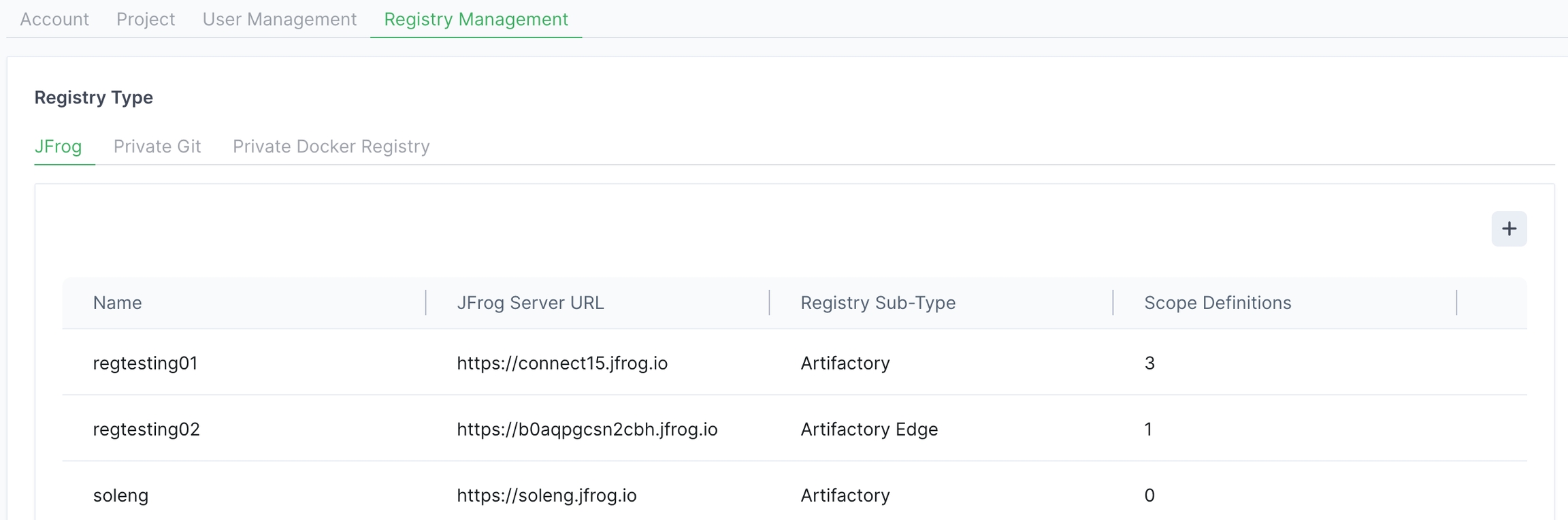
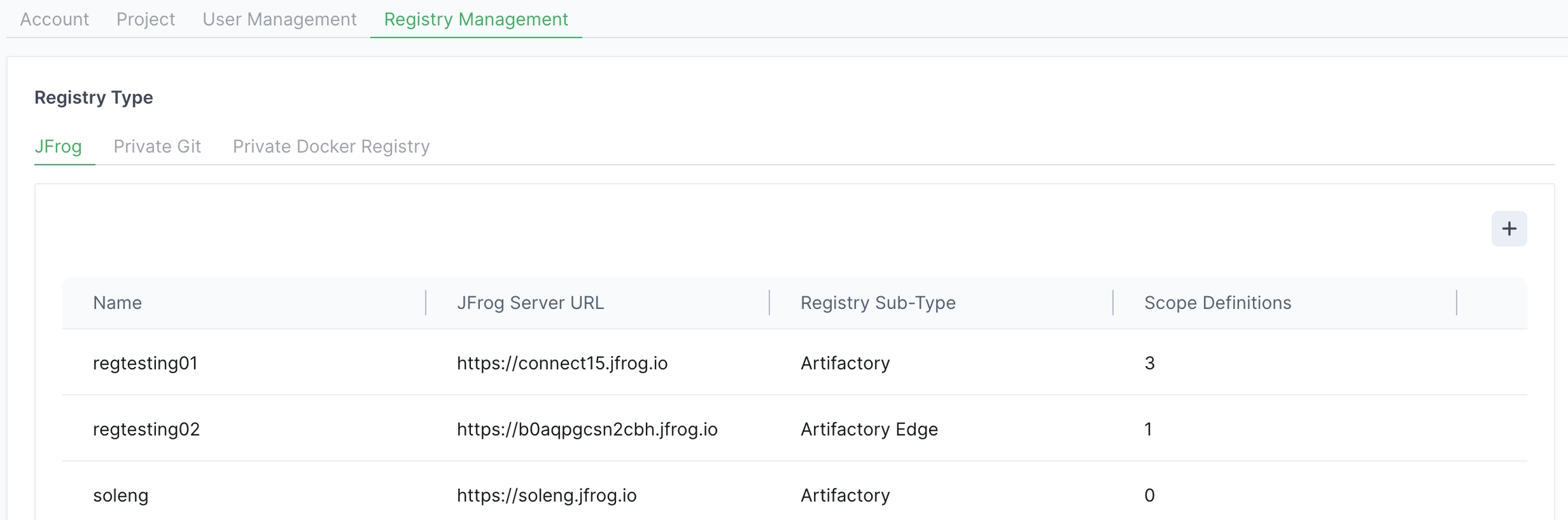
Go to Settings and the Registry Management tab, and choose JFrog for the Registry Type.
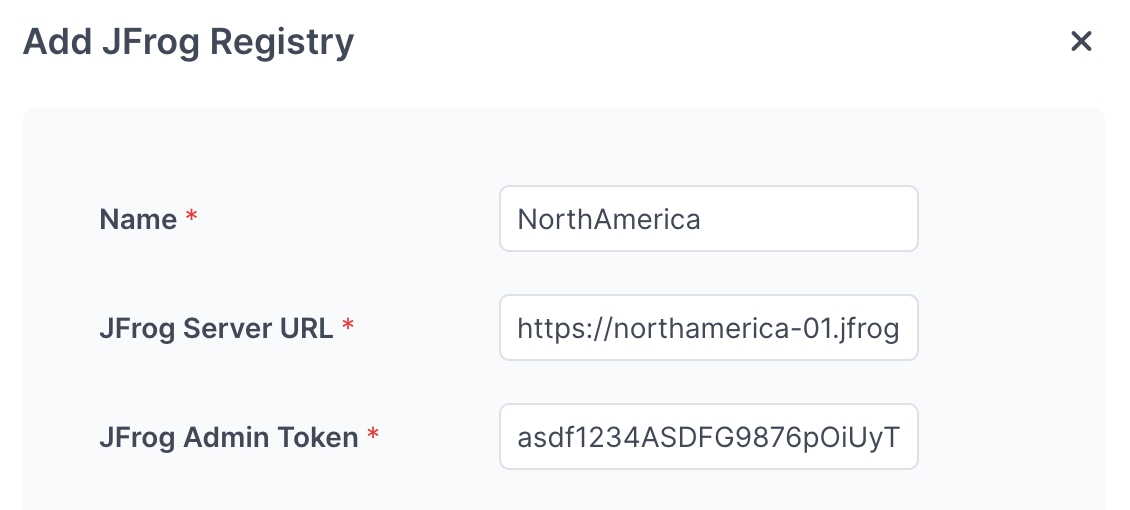
Click + on the upper right of the page. Enter the following information and click Done.
Name: A unique name you choose for the registry.
JFrog Server URL: URL for the applicable Artifactory or Edge server.
JFrog Admin Token: Your .
Tip: Remember to keep your token safe and do not save it where it could be accessed by others.
Learn how to edit a JFrog registry.
Registering a single device. In this case, use the procedure described in Register a Device. You do not need the procedure on this page.
To create a device-project pairing token, do the following:
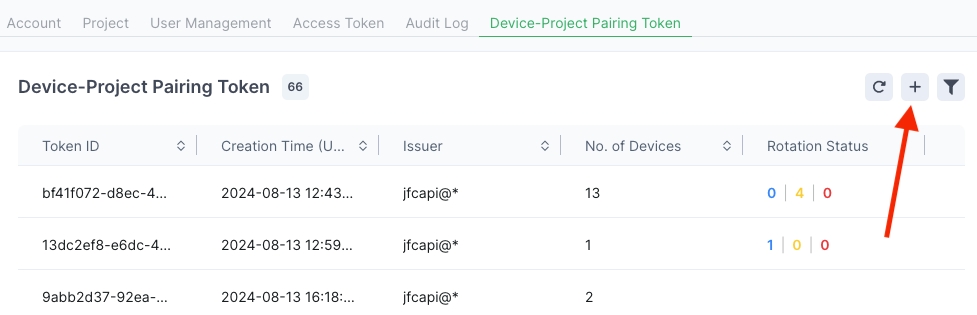
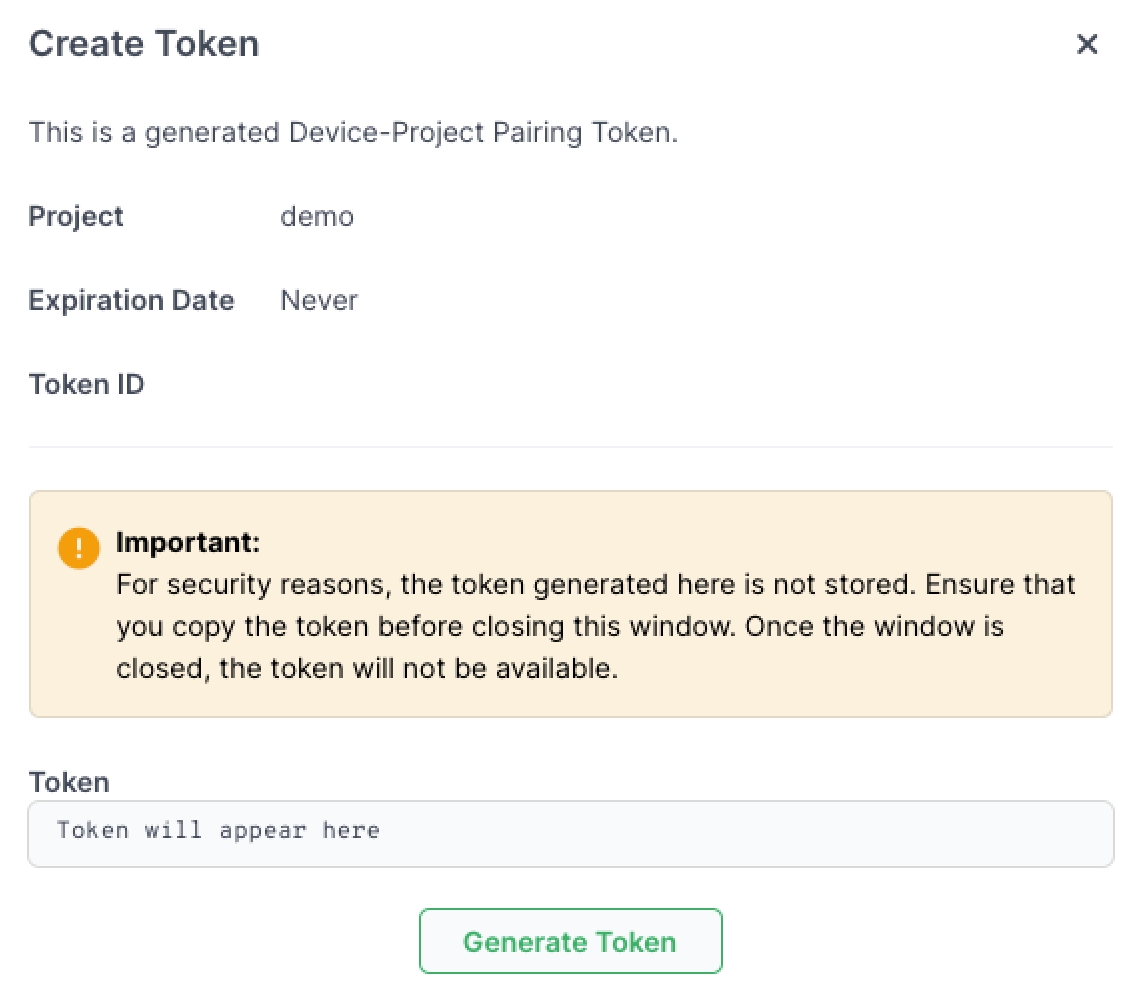
Go to the Device-Project Pairing Token tab in Settings and click Create (+).
When the token is created, copy it to the clipboard.
Paste the token into the registration command that you are going to use (for registering devices at scale or changing the project of a device).
Learn how to rotate a device-project token.
Changes devices in Failed status to “no rotation”. This means that a failed rotation is not counted as a rotation.
For devices that have the status “In progress”, the Abort Token Rotation button is disabled.
To abort a token rotation, do the following:
In Settings, go to the Device-Project Pairing Token tab.
In a row that shows one or more devices with rotation status Pending, click the three dots on the right and choose Abort Rotation.
When prompted, confirm the action.
Learn how to revoke a device-project pairing token.
When prompted, confirm the deletion.
Learn how to link to an Artifactory Edge server.

Add an access scoping in JFrog Connect.
Access scoping is a method of ensuring that only the intended artifacts are distributed to the intended edge and IoT devices. This is a way of protecting both the artifacts and the devices from unauthorized or inappropriate distribution.
Access scoping enables you to define and restrict artifact distribution based on specified project configurations and Artifactory sources. For example, to configure a complete access scoping, you will associate one or more Connect Projects to the following elements:
Registry: A JFrog server URL, which accesses either an Artifactory registry or an Artifactory Edge server.
Artifactory Project: A Project in Artifactory from which content will be allowed. You can allow multiple Artifactory projects.
Artifactory Environment: A set of resources that are mapped to an Artifactory Project for a specific purpose, for example, Development, Testing, Staging, Production. Multiple can be mapped to a single Artifactory project.
Either Administrator role or permissions for:
Create and Modify Projects
Create and Modify Integrations
At least one registry, one Artifactory project, and one environment created in Artifactory
To create an access scope, do the following:
Go to Settings and the Registry Management tab and choose JFrog for the Registry Type.
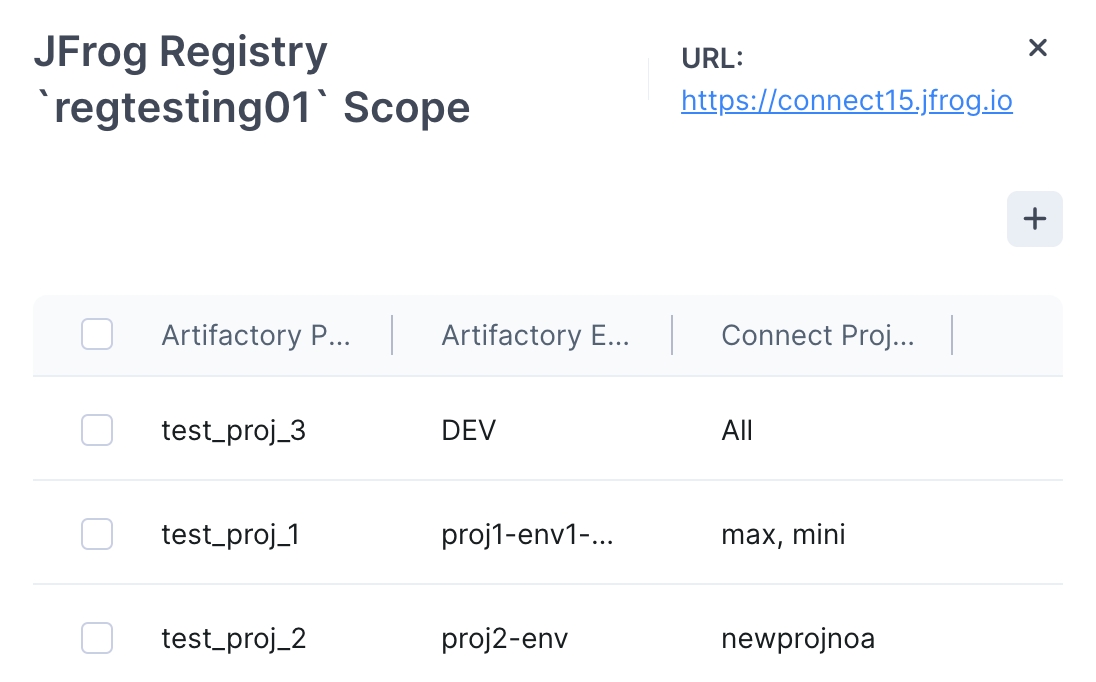
Choose a registry and click anywhere in the row. If you need to create a new registry, click + in the Registry Type page and complete the procedure in .
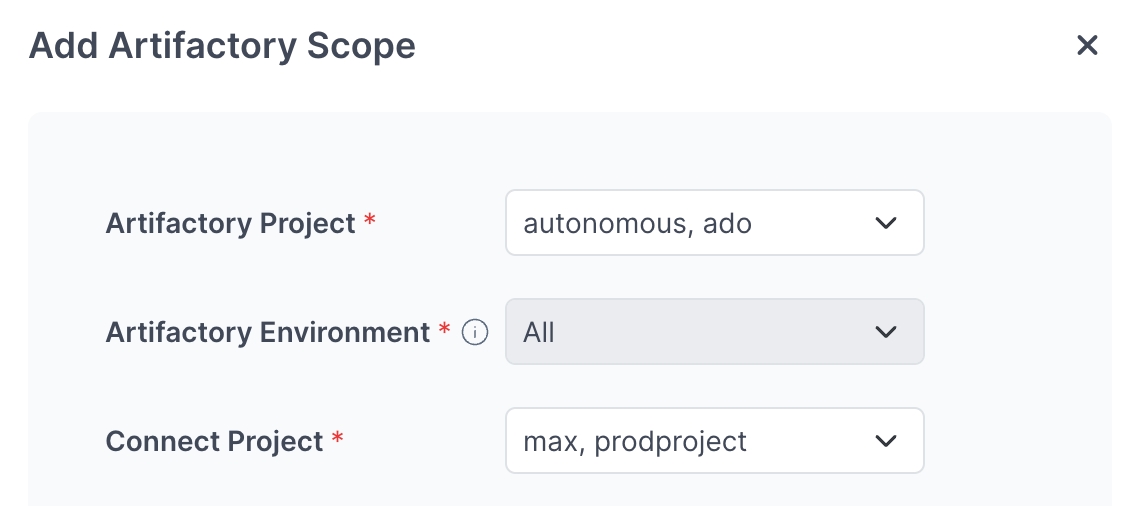
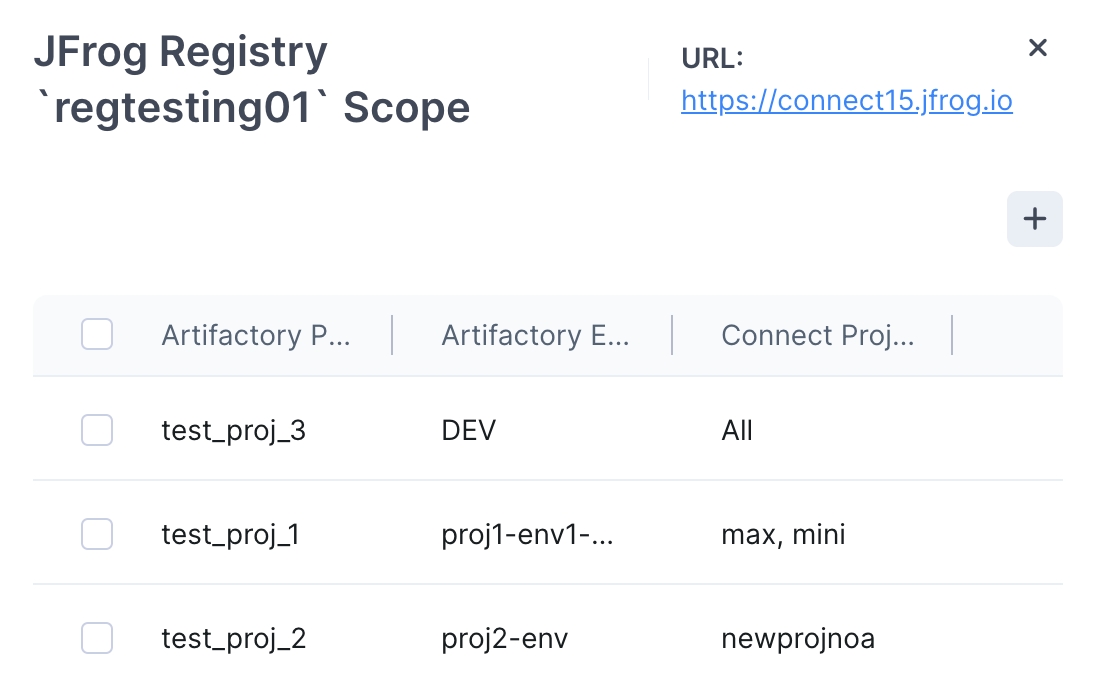
Above the registry table, click +. In the Add Artifactory Scope popup, choose an Artifactory Project, an Artifactory Environment, and one or more Connect Projects. If you choose multiple Artifactory projects, then Artifactory Environment will automatically be set to All.
Usage Rules
If you choose multiple Artifactory Projects, the value for Artifactory Environment will automatically be All.
If you want to select less than All environments, you can select only one Artifactory Project.
Click Done and your scoping configuration is complete.
To close the loop entirely, ensure that your user (or user role) definitions include access to the correct Connect Projects.
Learn how to to Connect.
Make changes to several scopes with one click in JFrog Connect.
Once you have created several Artifactory scopes, you may need to make some bulk changes. Some examples use cases are:
Remove five Artifactory projects and add several new ones to all the scopes
Add all Connect projects (plus future ones created) to a selected set of scopes
Delete 19 Artifactory scopes from a list of 25 existing scopes
The procedure below describes how to easily make these kinds of bulk edits.
Either Administrator role or permissions for Create and Modify Projects.
At least two Artifactory scopes already created
To edit an access scope, do the following:
Go to Settings and the Registry Management tab, and choose JFrog for the Registry Type.
Choose the relevant registry and click anywhere in the row.
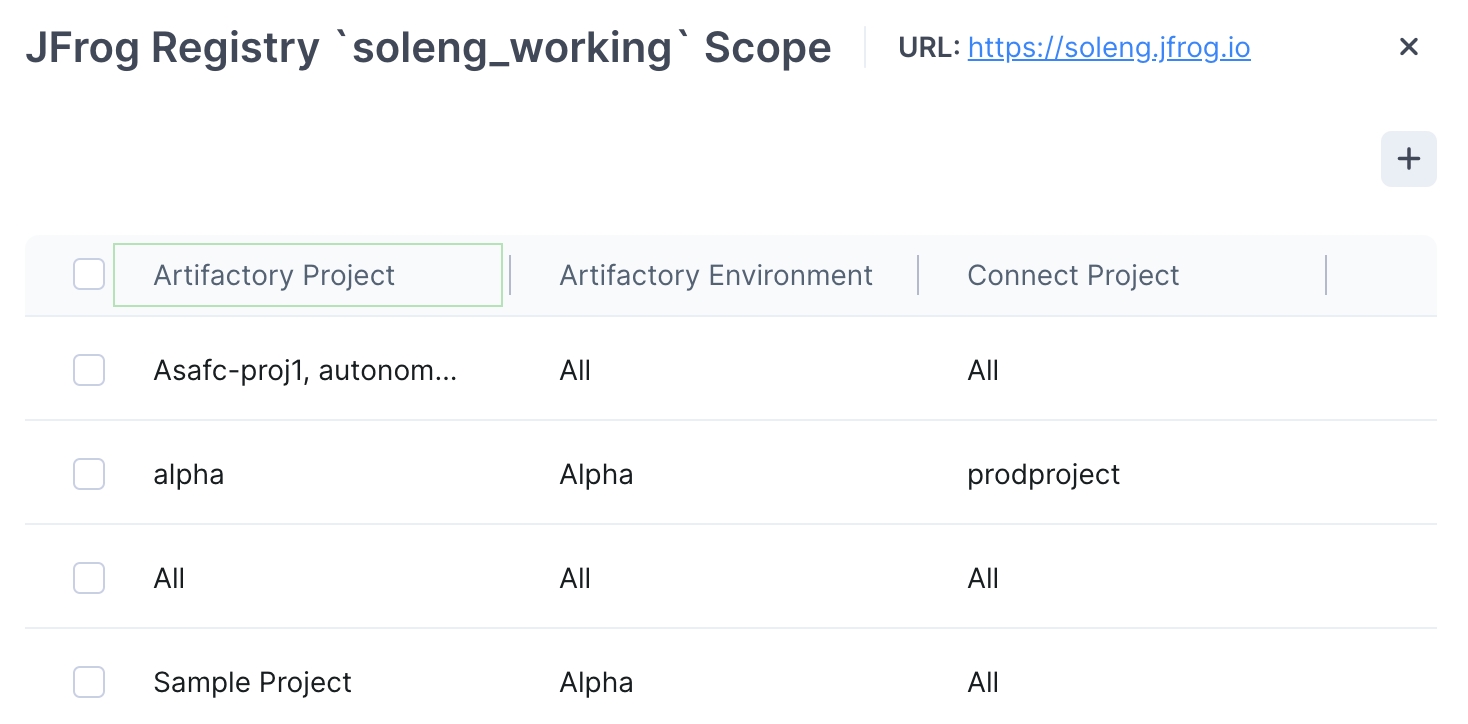
On the far left, mark several or all of the checkboxes. The edit bar will be at the bottom of the panel as shown below.
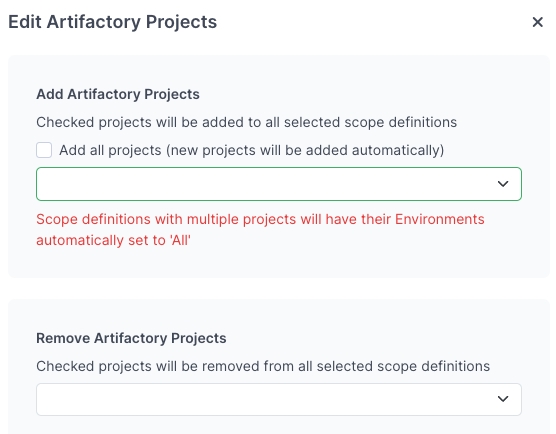
Click Edit Artifactory Projects. Choose one or more of the edits described below, and apply.
Add Artifactory Projects: The projects you choose in the dropdown list below will be added to all of the selected scope definitions.
Add All Projects: Mark this checkbox to add all the projects to the selected scope definitions. When you mark this, future projects added to the project list will be added to the selected scope definitions.
Tip: Scope definitions with multiple projects will have their environments automatically set to All.
Remove Artifactory Projects: The projects you choose in the dropdown list below will be removed from all of the selected scope definitions.
Tip: A scope must include at least one Artifactory project.
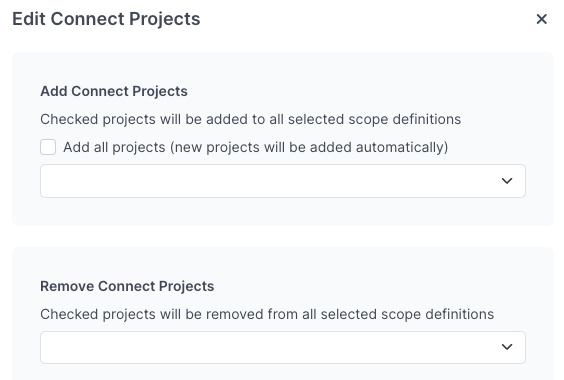
Click Edit Connect Projects. Choose one or more of the edits described below, and apply.
Add Connect Projects: The projects you choose in the dropdown list below will be added to all of the selected scope definitions.
Add All Projects: Mark this checkbox to add all the projects to the selected scope definitions. When you mark this, future projects added to the project list will be added to the selected scope definitions.
Remove Connect Projects: The projects you choose in the dropdown list below will be removed from all of the selected scope definitions.
Tip: A scope must include at least one Connect project.
Learn how to .
Use JFrog Connect to link a Docker registry and deploy updates directly from your container registry to the edge devices.
When you use the Deploy Docker action in a software update, you can configure the action to pull container images directly from your Docker Hub registry. All you need to do is link your Docker Hub registry to your JFrog Connect account. You can also link a Docker registry from other registry providers, such as AWS ECR or other private registries.
To connect a private Docker, do the following:
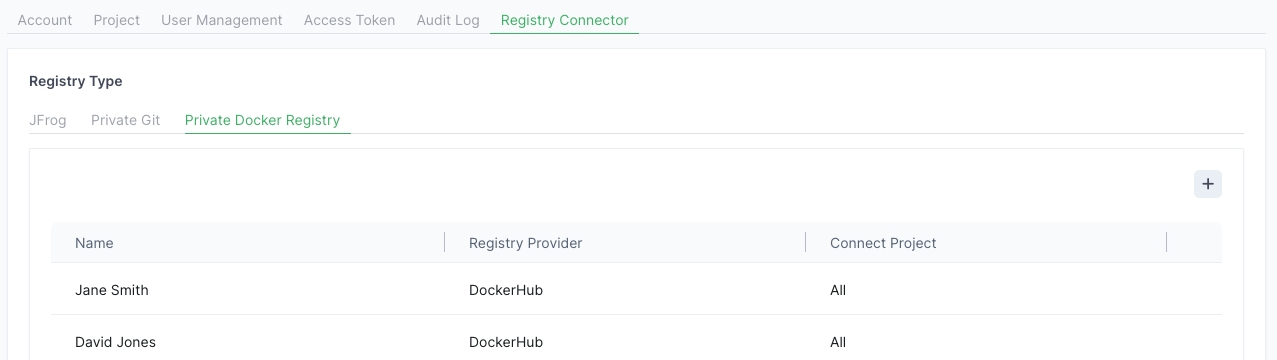
In Settings, go to Registry Management and click the Private Docker Registry tab.
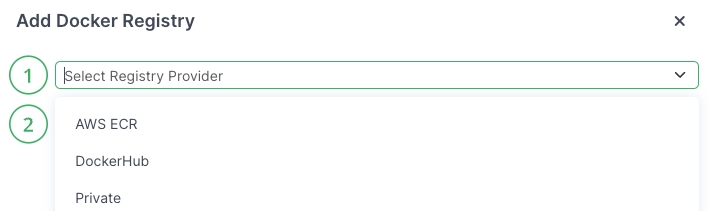
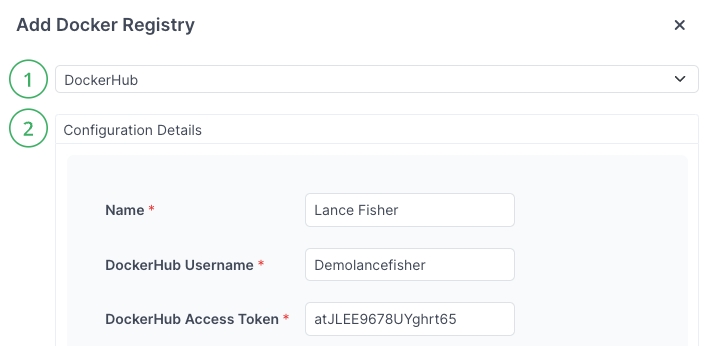
Click Add (+) on the upper right and select a Registry Provider from the dropdown.
Complete the configuration information for the registry provider you selected and click Done. The example below is for adding DockerHub as the registry provider.
Learn how to .
JFrog Connect allows edge devices to use a proxy to communicate with the servers to use Remote Control and Remote Commands features.
Edge devices that communicate through web proxy servers require changes in the JFrog Connect service configurations to enable packet transmission. This page describes how to configure communication through a proxy specifically to enable Remote Control and Remote Commands.
To enable remote connections through a proxy, do the following:
Define the proxy protocol where applicable, as shown in the examples below. Available proxies are:
socks4 -> 4
socks5 -> 5
http -> connect
For example, http:
ProxyCommand nc -X connect -x 192.168.20.165:8000 %h %pTo enable Remote Control through a proxy, add the following line to the end of the file /etc/connect/service/remoteA (note the indentation):
To enable Remote Access through a proxy, add the following line to the end of the file /root/.ssh/config:
Learn how to between the edge device and the Connect server.
View list of users in JFrog Connect.
Users and Roles are managed in JFrog Platform under the Administration tab. User permissions for JFrog Connect are managed in Connect under the User Permissions tab.
To view the list of users, in Connect, go to Settings in the left navigation tree and click the User Permissions tab.
The User Permissions tab shows the same list of users that appear in JFrog Platform and indicates the following user attributes:
Name
Projects
Is Admin
Last Login
Each user is defined as either an administrator or non-administrator.
An administrator is a user that has the Admin role defined in the Platform. An administrator has access to all functions and features in Connect and can perform various management tasks such as creating, viewing, editing, and deleting of non-admin users. In addition, there are certain features in Connect, e.g. Audit Log, that by definition only the administrator user has access to. An administrator user in the Platform is also an administrator in Connect.
A non-administrator is any Connect user that does not have the Admin role defined in the Platform.
Once you have created a Connect user, you can find the user listed in the table of users that appears in the User Permissions tab.
Learn how to .
Make changes to the JFrog Registry that JFrog Connect uses.
If you need to change the access token in a JFrog registry, you can edit the registry.
Either Administrator role or permissions for Create and Modify Projects.
At least one JFrog registry
To edit a registry, do the following:
Go to Settings and the Registry Management tab, and choose JFrog for the Registry Type.
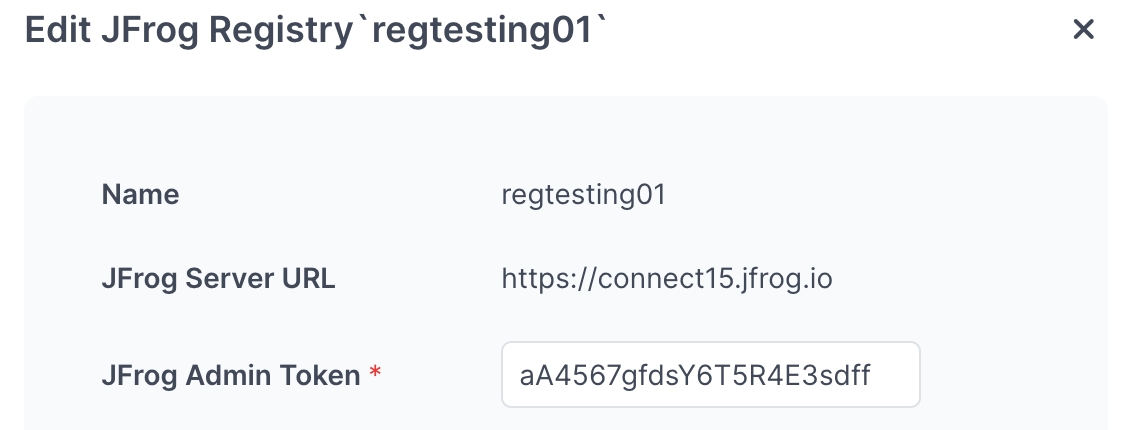
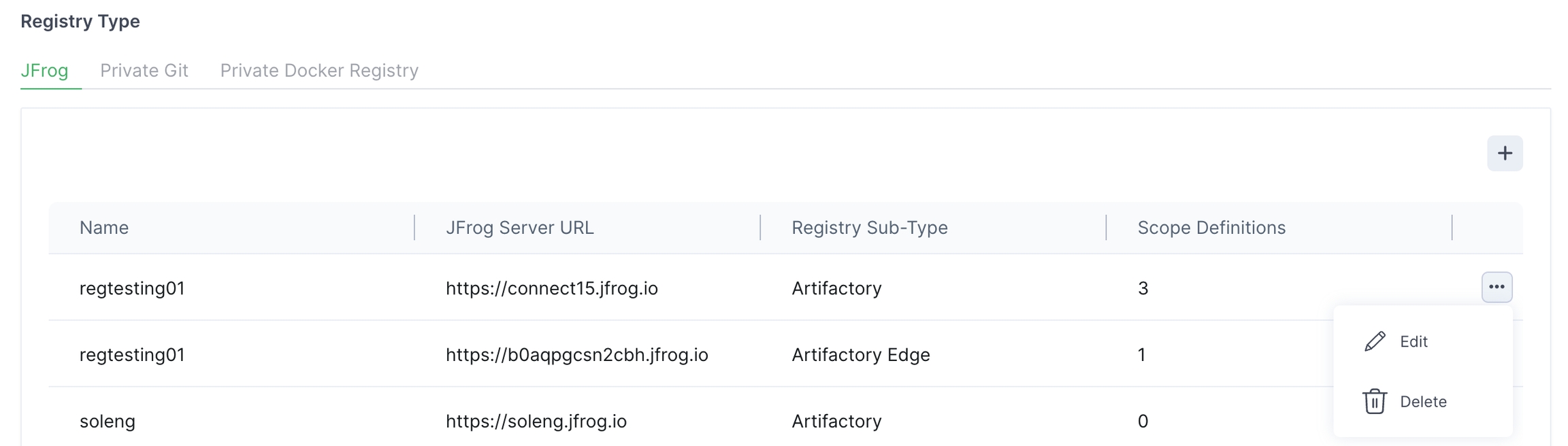
In the row of the relevant registry, click the three dots on the right side, and click Edit.
Add the new JFrog Admin Token and click Save.
If you need to change the name or the JFrog Server URL, you will need to and create a new one. If you have not saved the access token in another location, you will lose it when you delete the registry.
Learn how to .
JFrog Connect allows edge devices that are connected to the network through a proxy to communicate with Connect servers.
Edge devices that communicate through web proxy servers require changes in the JFrog Connect service configurations to enable packet transmission. This page describes how to enable general communication through a proxy.
To enable features such as remote control and remote access, see Allow Proxy for Remote Communication.
To enable standard communication through a proxy, do the following:
On the edge device, navigate to /etc/systemd/system/connect.service and open the file for editing.
Under the [Service] section, add the following two lines:
Review the file to ensure that it looks like the example below and save.
Learn how to .
To keep your security risk low in JFrog Connect, you can rotate the device-project pairing token.
JFrog Connect uses tokens and enables token rotation according to the JWT standard. Token rotation is a security mechanism designed to minimize the risks associated with token theft and unauthorized use. When you rotate the device-project pairing token in Connect, you replace the token with a new one.
If you suspect that a token has been compromised, or if you just want to keep your security risk low, you can rotate or revoke the pairing token at any time.
To rotate the device-project pairing token, do the following:
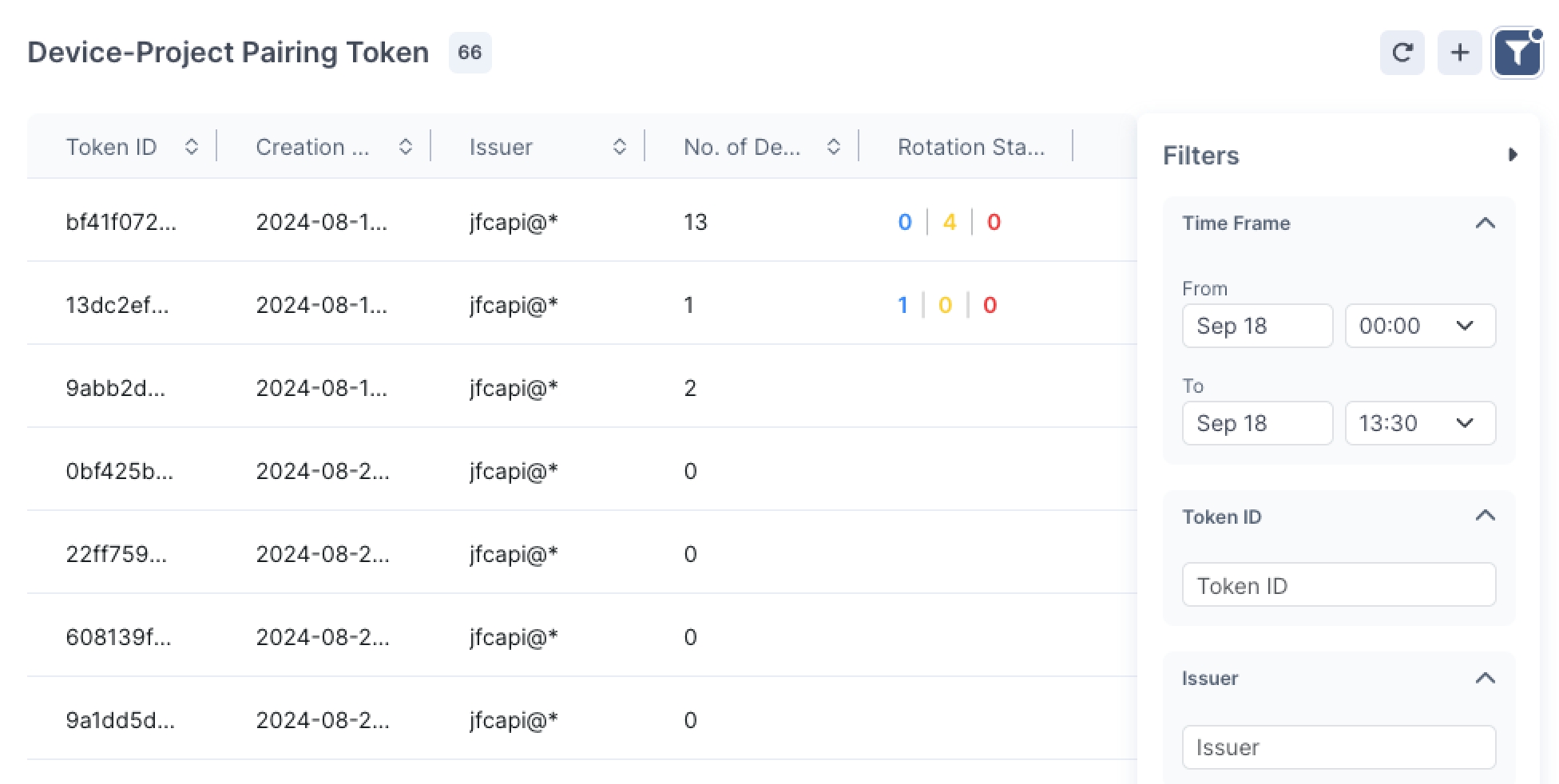
Go to the Device-Project Pairing Token tab in Settings and locate the relevant Token ID. If you don’t see the token in the table, you can use the filter on the right to find it.
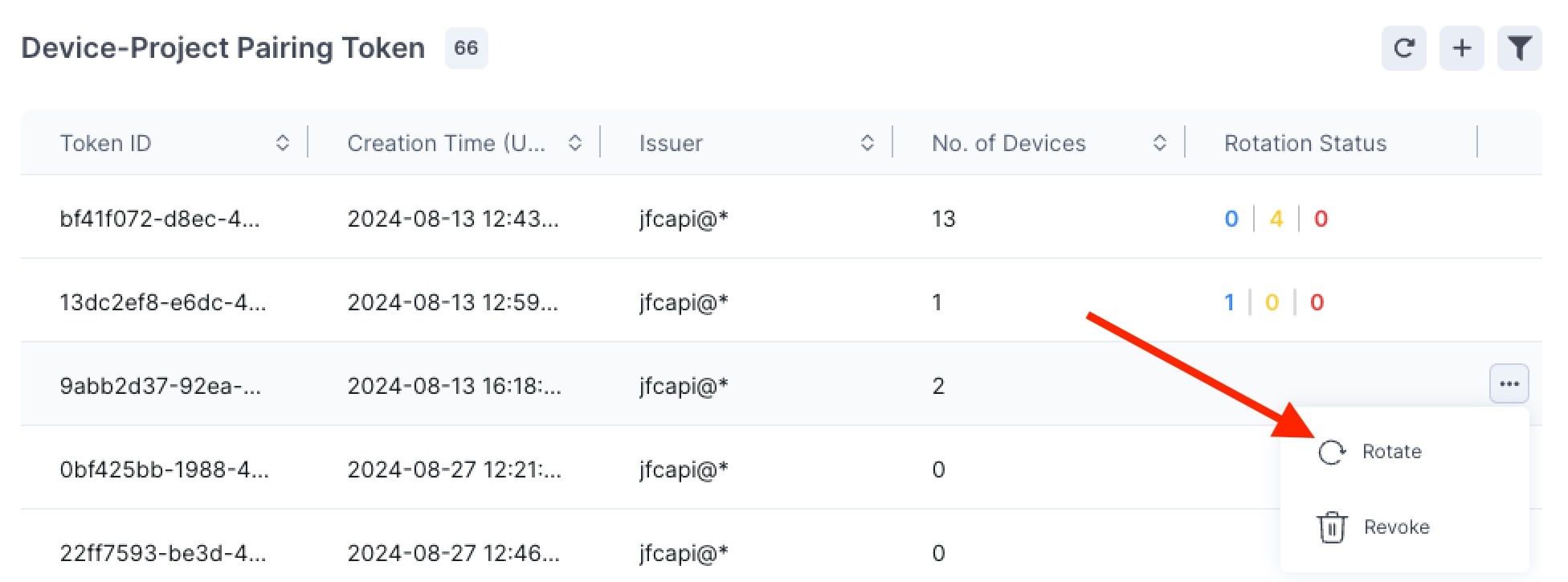
In the row of the relevant Token ID, click the three dots on the far right and click Rotate.
You can follow the status of the token by hovering over the Rotation Status column in the table. The popup will show you the number of devices in each state:
Pending
In Progress
Succeeded
Failed
Learn how to:
.
once it has been created.
New users are created in the JFrog Platform.
A non-administrator user is any user that does not have the Administrator role defined in JFrog Platform.
New Connect users are created in the JFrog Platform. To create a new user from scratch, start with Step 1 in the procedure below.
If the user already exists in the Platform, and you just want to add the user to Connect, start with Step 2 in the procedure below.
Go to the Platform User Management settings and create a new user according to the procedure described in . When you create the new user, under Roles, ensure that Administer Platform is not marked. Other options under Roles can be marked, but none of them are required.
Delete a project in JFrog Connect.
When you delete a project, you also delete all devices that were registered to that project. A device can be registered to only one project.
To delete a project, do the following:
Choose a project in the project filter.
Go to Settings and choose the Project tab. Click Delete Project
Add users to a new or existing project in JFrog Connect.
When you in , you and other Connect administrators are included in the project by default. Non-administrator users are not included in the project until you add them.
To add a user to a project, do the following:
In Settings, go to the User Permissions tab, click the three dots for the user on the right side of the table, and click Edit.
Manage your device-project pairing tokens in JFrog Connect.
Each device registered in your fleet is paired to a project and uses a device-project pairing token. A device must be paired with a project in your account to be accessible in JFrog Connect. The pairing token is one of the methods that Connect uses to ensure a secure connection between Connect and your edge device.
Register and Move Devices . The device-project pairing tokens are managed in the Device-Project Pairing Token tab, which is visible only if you have these permissions.
Delete a JFrog Registry the JFrog Connect uses.
Use JFrog Connect to link a Git registry to deploy updates directly from your Git to the edge devices.
You can connect a Git repository account, also referred to as a private Git, to JFrog Connect at any time, and you can link as many private Gits as you need.
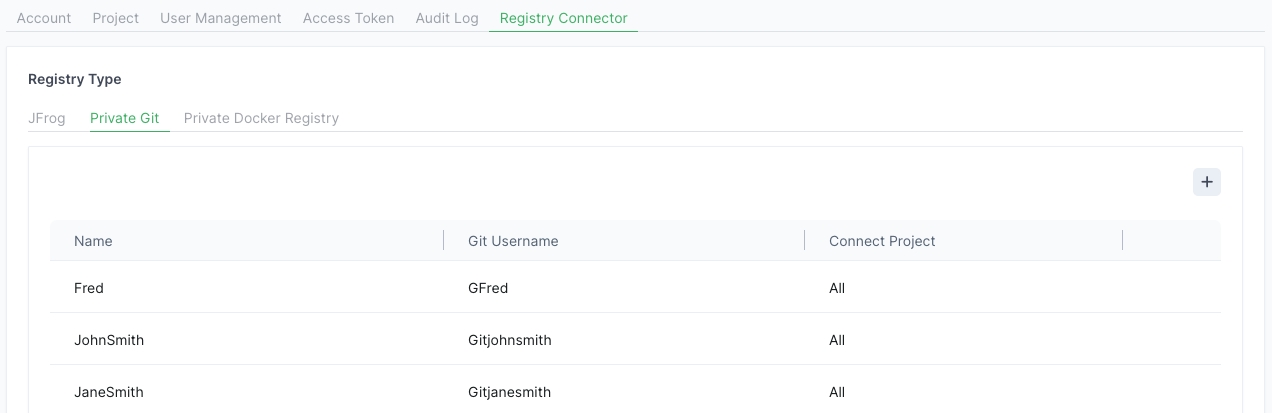
To connect a private Git, do the following:
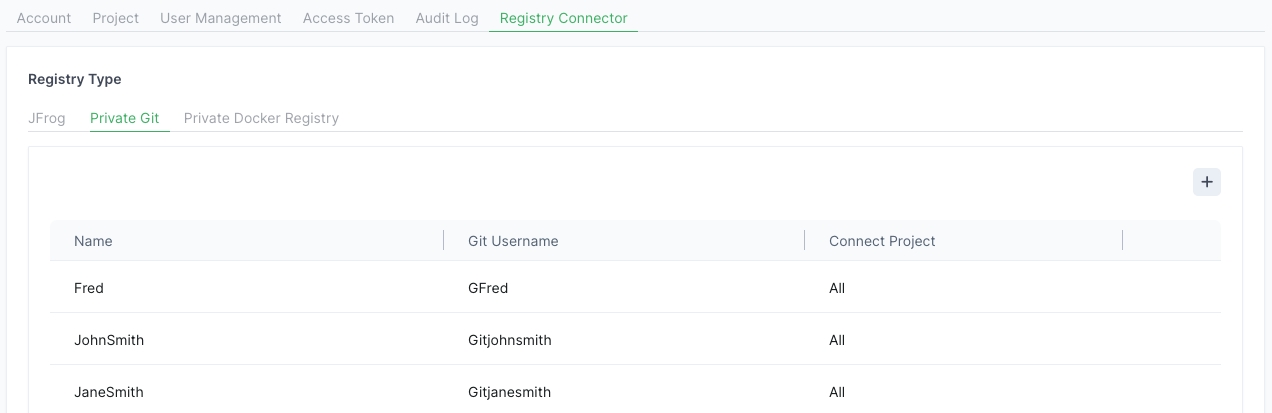
In Settings, go to Registry Management and click the Private Git tab.
Click Add (+) on the upper right.
    ProxyCommand nc -X <4|5|connect> -x
<proxy-host>:<proxy-port> %h %p
Host forwarding.connect.jfrog.io
    ProxyCommand nc -X <4|5|connect> -x
<proxy-host>:<proxy-port> %h %pEnvironment="http_proxy=<PROTO>://<PROXY ADDRESS>:<PROXY PORT>"
Environment="https_proxy=<PROTO>://<PROXY ADDRESS>:<PROXY PORT>"System information as of <last change date>
[Unit]
Description=JFrog Connect service
After=network.target
StartLimitIntervalSec=0
[Service]
Environment="http_proxy=<PROTO>://<PROXY ADDRESS>:<PROXY PORT>"
Environment="https_proxy=<PROTO>://<PROXY ADDRESS>:<PROXY PORT>"
Type=simple Restart always
RestartSec=5
StartLimitBurst=5
User=root
ExecStart=/etc/connect/service/ConnectAgent
[Install]
WantedBy=multi-user.targetAt least one Connect Project, defined in Connect.
If the registry you chose in Step 2 was of sub-type Edge, then you can only choose the Connect Projects in the scope. Artifactory Project and Environment will automatically be All and All.
If you are using the Docker Compose or Debian Package actions in your update flow, Artifactory Project and Artifactory Environment must be set to All.
Whenever you choose All, this means all current and future items. This is true for Artifactory Projects, Artifactory Environments, and Connect Projects.
For the user to be non-administrator in Connect, the user must be a non-administrator in the Platform. In the list of Users in JFrog Platform, search for the user and verify that the user is already indicated as a non-administrator.
Go to Settings and User Permissions in Connect and verify that the user appears in the Connect list of users and is indicated as a non-administrator.
In Connect, assign the user to one or more projects. You can use the procedure in Add User to Project. In each project, be sure to choose Project Permissions for the user.
Important: If you do not include the user in one or more projects and assign project permissions, the user will not be able to log in to Connect.
If the new user has not yet received login credentials for the Platform, give the username and password to the user.
The new user is now ready to log in to the Platform and start using Connect.
Learn more about the user permissions you can assign in Connect.

Warning: When you delete a project, you also delete all devices that were registered to that project.
Learn how to create a group.
Under Project Permissions, choose the relevant project from the dropdown list and mark the specific permissions the user should have to the project. If you want the user to have all the permissions, click Select All. Save your changes.
Learn how to remove a user from a project.
Connect Agent 7.0 or higher.
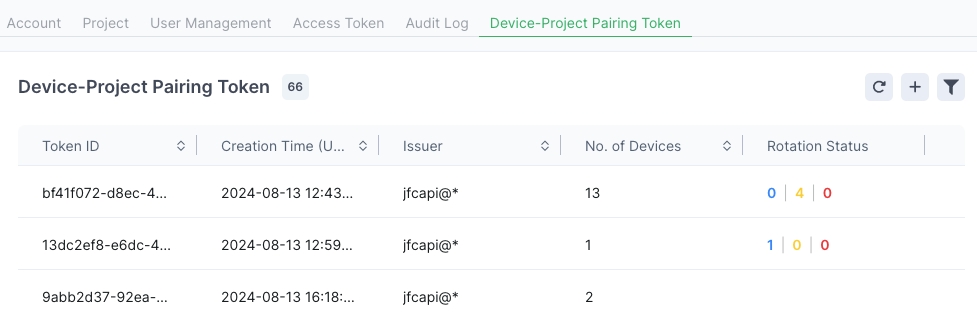
To view information about the tokens and manage their status, go to the Device-Project Pairing Token tab in Settings. In the table displayed, you can see the following information about the tokens:
Token ID
Creation date and time (UTC) of the token
Issuer of the token (user name or API requester)
Number of devices using the token
Rotation status of the token
If you don’t see the token you are looking for in the list, use the filter on the upper right to find the token.
Learn how to create a new token.
At least one JFrog registry that is not the default JFrog registry
To edit a registry, do the following:
Go to Settings and the Registry Management tab, and choose JFrog for the Registry Type.
In the row of the relevant registry, click the three dots on the right side, and click Delete.
When prompted in the popup, confirm the deletion.
Learn how to edit an Artifactory scope.
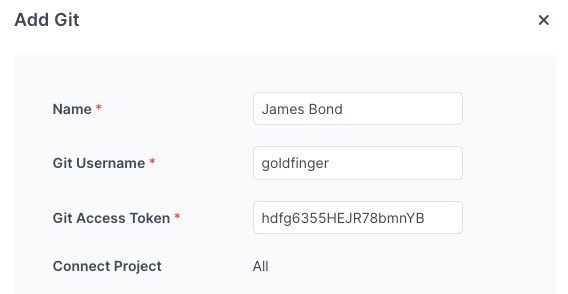
Add the following Git information and click Done.
Name
Git Username
Git Access Token
Learn how to delete a connection to a Git.
Delete several scopes with one click in JFrog Connect.
You can easily delete several Artifactory scopes at once. The following procedure shows you how.
Either Administrator role or permissions for Create and Modify Projects.
At least two Artifactory scopes already created
To delete multiple access scopes at once, do the following:
Go to Settings and the Registry Management tab and choose JFrog for the Registry Type.
Choose the relevant registry and click anywhere in the row.
On the far left, mark several or all of the checkboxes. The edit bar will appear at the bottom of the panel as shown below.
Click Delete. When prompted for a confirmation, confirm the deletion.
Learn how to .
Delete an access scope in JFrog Connect.
Once you have created an Artifactory scope, you can delete it. The following procedure shows you how.
Either Administrator role or permissions for Create and Modify Projects.
At least one Artifactory scope already created
To edit an access scope, do the following:
Go to Settings and the Registry Management tab and choose JFrog for the Registry Type.
Choose the relevant registry and click anywhere in the row.
In the row of the relevant scope, click the three dots on the right side, and click Delete.
When prompted for a confirmation, confirm the deletion.
Learn how to at once.
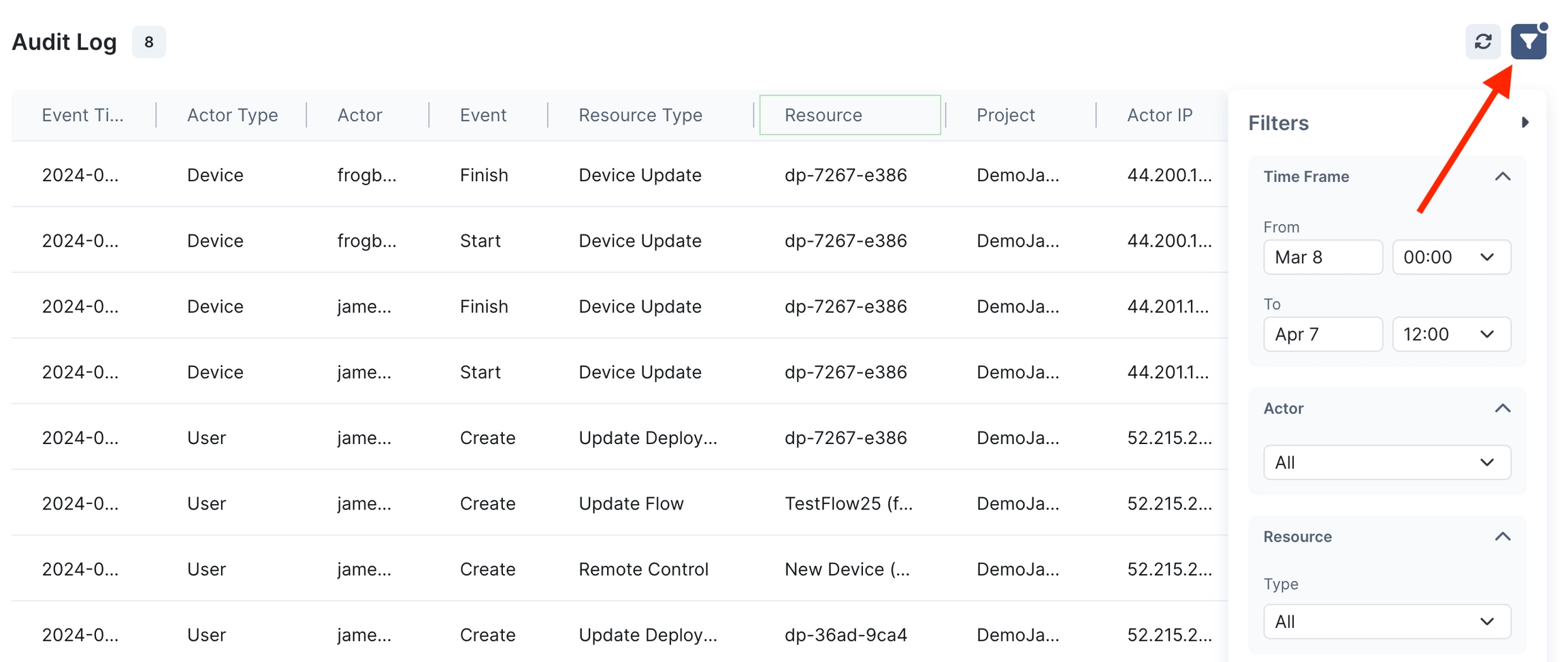
The audit log shows a record of user and device actions throughout the JFrog Connect. This page describes how you can view and filter actions in the audit log.
JFrog Connect provides an audit trail, also called the Audit Log, that includes records of user and device actions throughout the system. In the audit log viewer, you can filter and view operations per specific actors, actions, and resources. The audit log has a flexible filter that enables you to track and pin-point events for purposes of troubleshooting, security, testing, and auditing.
The audit log is available to customers who have and to Administrator users only.
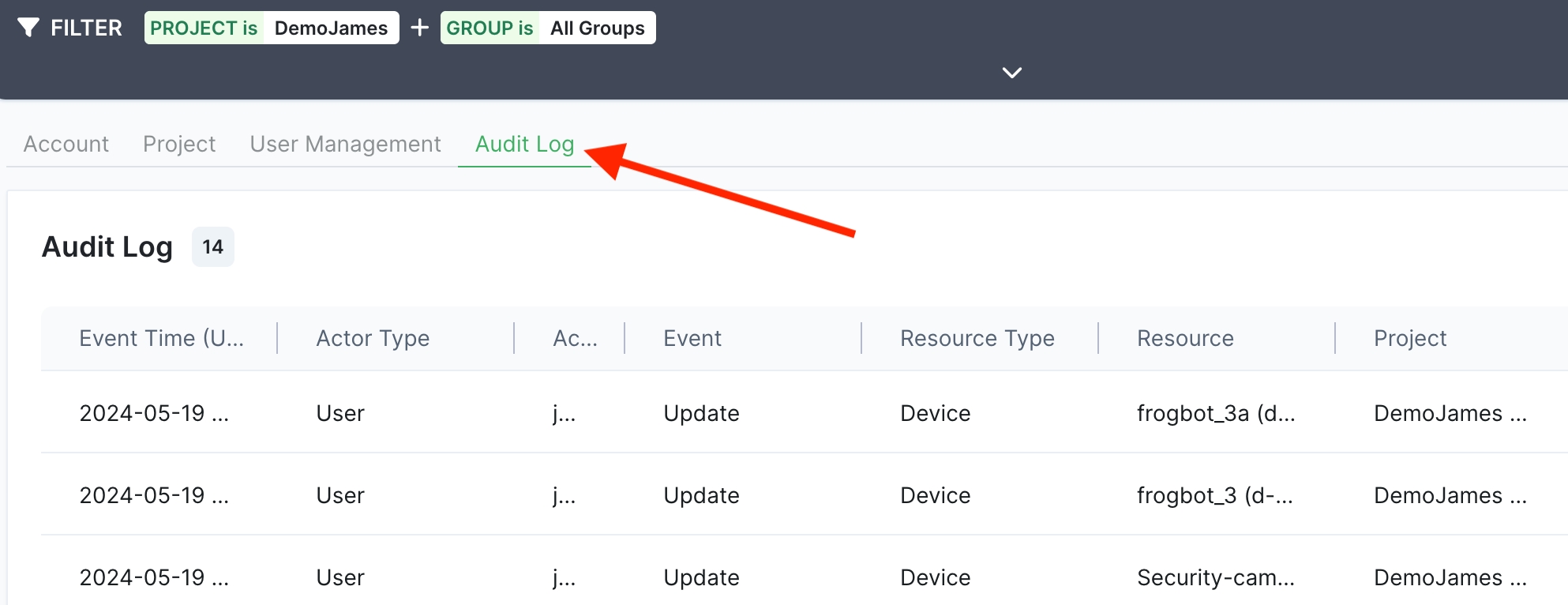
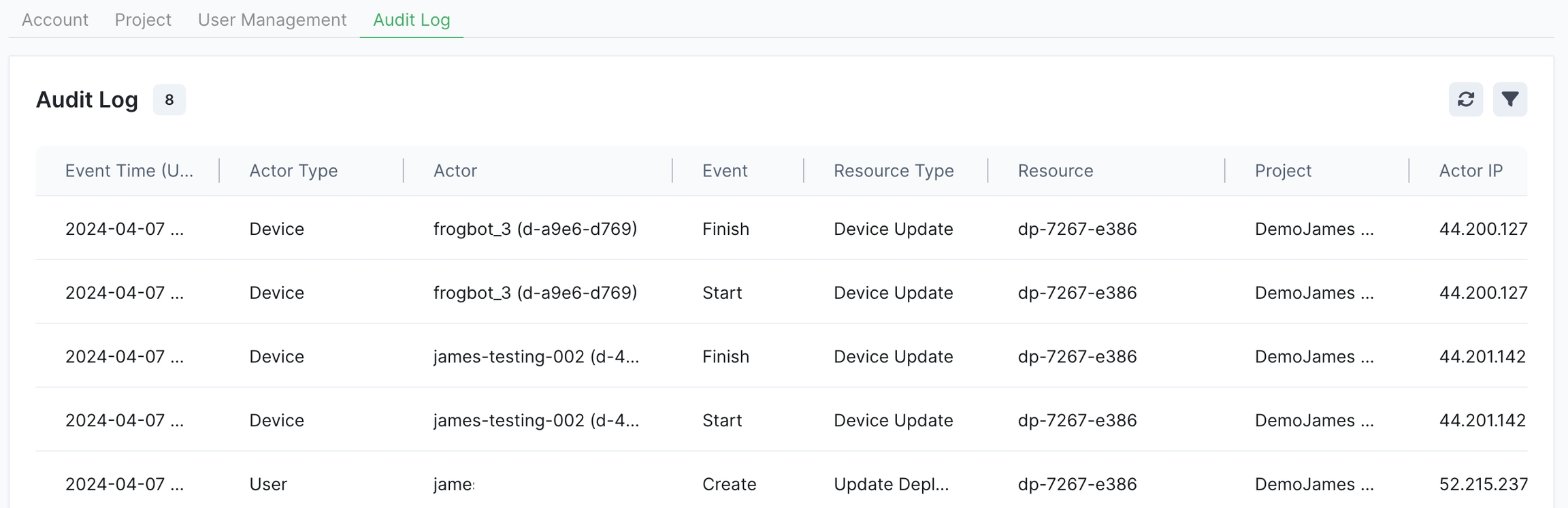
Go to Audit Log in the left navigation tree. The audit log appears as a list of records in chronological order.



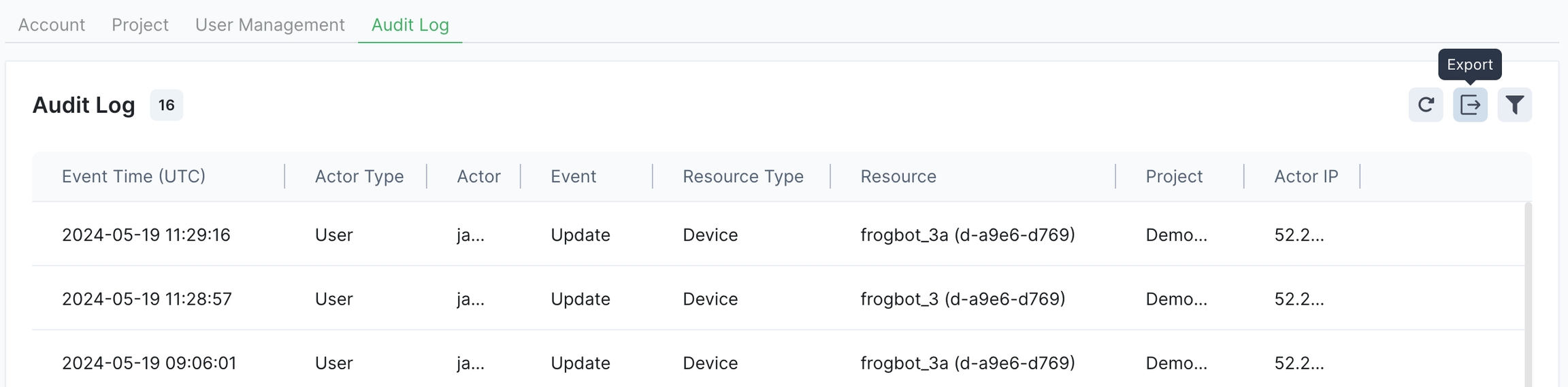
Each row in the table represents an event in the system and provides information about the event such as:
Event Time: The server timestamp when the action is initiated. This is a date and time according to Coordinated Universal Time (UTC).
Actor Type: The kind of entity initiating the action. Can be a device, a user, or an API call.
Actor: Shows either the email address or the name and UUID of the entity initiating the action.
Event: The operation that the actor did, for example, Create or Delete.
Resource Type: The kind of entity acted upon, for example, a device or an app.
Resource: The specific entity that was acted on, identified by its name or its name with a UUID.
Project: The name of the project and project key in the account where the event took place. For some events, Not Applicable appears. For example, an event that updates billing information applies to the whole account, and is not related to a specific project.
Actor IP: The IP address of the entity taking the action.
The default view of the audit log shows actions from the last 30 days. You can filter the log to show only a specific subset of actions.
To filter the log actions in view, click the filter icon on the upper right. The Filters panel appears on the right.
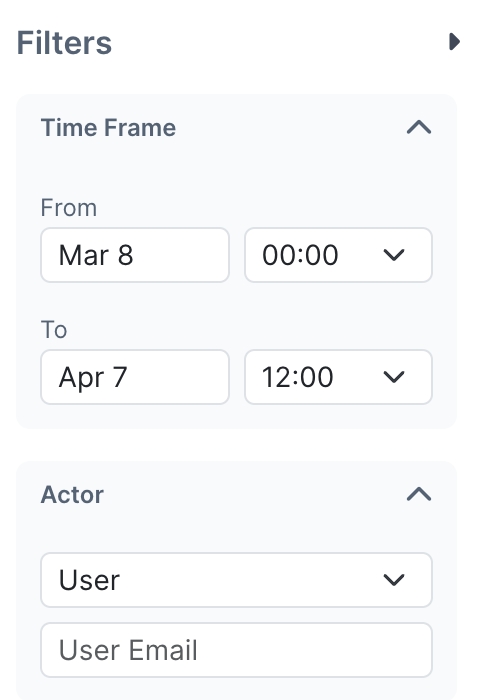
You can filter for a specific time frame by entering the starting and ending dates and times. When you click on either of the date boxes, a date picker box will open for you to choose the date. Click the down arrows to choose the starting and ending times.
You can filter on the Actor or the Resource, but not both. To choose the type of actor, for example, User, and then enter the email address of a specific user. The relevant records will appear automatically.
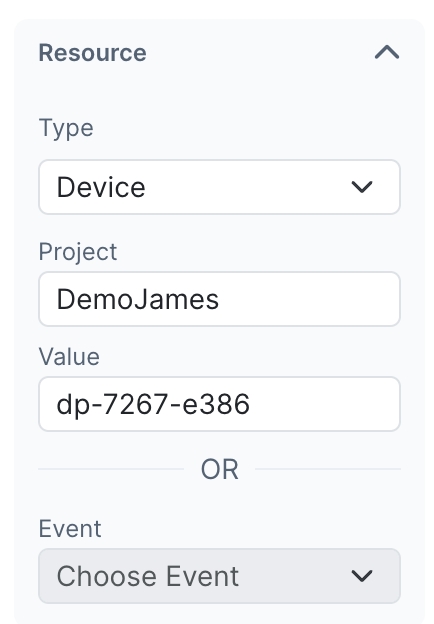
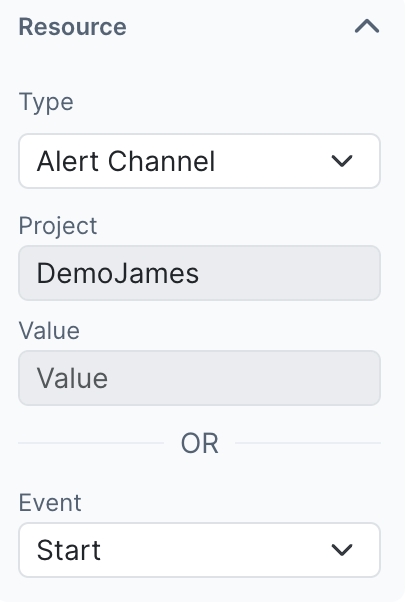
If you filter by resource, choose the resource type, for example, the alert channel.
Choose to filter by Value or Action.
Filter by Value, the UUID of the specific resource:
Filter by Event, for example, Start:
Learn how to export the audit log to a file.
Modify the permissions a user has in a project. Include or remove users from projects.
In JFrog Connect, you can modify the project permissions of non-administrators. Administrators have all project permissions by definition, so you cannot modify their permissions.
To add a user to a project:
Use the procedure in Add User to Project.
To remove a user from a project:
User the procedure in Remove User from Project.
To add or remove specific permissions a user has in a project, complete the steps below.
In Settings, go to the User Permissions tab, click the three dots for the user on the right side of the table, and click Edit. If you see the relevant user in the list of users, type their username in search box on the upper right of the page.
Under Project Permissions, choose the relevant project from the dropdown list.
Mark or unmark the permissions as needed.
If you want the user to have all the permissions, click Select All.
To unmark all the permissions, click Clear.
Save your changes.
Learn more about the .


JFROG CONNECT, Updated as of: January 9, 2022
THESE JFROG CONNECT GENERAL TERMS OF SERVICE (THE “AGREEMENT”) ARE MADE BETWEEN YOU (“CUSTOMER”) AND JFROG LTD. AND ITS AFFILIATES (“JFROG” OR “COMPANY”). PLEASE CAREFULLY READ THE TERMS AND CONDITIONS OF THIS AGREEMENT BEFORE REGISTERING FOR THE SERVICE. BY SIGNING AN ORDER FORM (AS DEFINED BELOW) THAT INCORPORATES THESE TERMS, OR BY REGISTERING FOR THE SERVICE (AS DEFINED BELOW), YOU HEREBY: (I) ACCEPT AND AGREE TO THESE TERMS; AND (II) REPRESENT THAT IF YOU ARE ACTING ON BEHALF OF A COMPANY, ORGANIZATION OR OTHER LEGAL ENTITY, THAT YOU ARE AUTHORIZED TO BIND SUCH COMPANY, ORGANIZATION OR LEGAL ENTIY TO THE TERMS AND CONDITIONS SET FORTH HEREIN. YOU HEREBY WAIVE ANY APPLICABLE RIGHTS TO REQUIRE AN ORIGINAL (NON-ELECTRONIC) SIGNATURE OR DELIVERY OR RETENTION OF NON-ELECTRONIC RECORDS, TO THE EXTENT NOT PROHIBITED UNDER APPLICABLE LAW. JFROG AND YOU MAY BE REFERRED TO IN THIS AGREEMENT, INDIVIDUALLY, AS “PARTY” AND, COLLECTIVELY, AS “PARTIES.”
DEFINITIONS. Capitalized terms not otherwise defined in this Agreement shall have the respective meanings assigned to them in this Section.
“Affiliate” means, with respect to a Party, any entity that controls, is controlled by, or which is under common control with, such Party, where "control" means the ownership of at least fifty percent (50%) of the voting interests of such entity or the powers to direct or cause the direction of the management and policies of such entity whether by contract or otherwise.
“Device” means an end-point device running a compatible operating system (as set forth in the Documentation) that is connected to the Service using a locally installed Agent.
“Documentation” means the written and/or electronic end user or technical documentation pertaining to the Service as provided by JFrog.
“Features” means features, capabilities and usage limitation for the Service, including, for example, number of devices, number of processes, log size, etc., all as set forth in the Website and the Documentation.
“Intellectual Property Rights” shall mean any and all rights existing from time to time under patent law, copyright law, moral rights law, trade secret law, trademark law, unfair competition law, publicity rights law, privacy rights law, and any and all other proprietary rights, and any and all applications, modifications or corrections thereto, including all derivative works thereof, renewals, extensions and restorations thereof, now or hereafter in force and effect worldwide.
“JFrog Cloud Data Processing Agreement” means either JFrog Cloud Data Processing Agreement for GDPR available athttps://jfrog.com/jfrog-cloud-data-processing-addendum/or JFrog Cloud Data Processing Agreement for CCPA, available athttps://jfrog.com/jfrog-ccpa-addendum/as applicable.
“Order Form” means an ordering document, whether by way of an online registration to the Service or by way of another document between the Parties, that identifies the commercial terms of a purchase of a Subscription to the Service, including the applicable Subscription Plan, Subscription Term, and the associated Fees.
“Software” means JFrog’s software that is licensed for Customer’s use as part of the Service, including any software which is designated to be self-hosted by Customer and interoperate with the Service (which will also be defined as “Agent” were applicable). Software includes any and all updates and upgrades that are made generally available by JFrog to its customers during the applicable Subscription Term. To remove any doubt, this includes the Software and its binary code, compilation of data, or visual display resulting from the operation of the Software, and any associated materials, specifications and documentation.
“Subscription Plan” means the accumulation of Features which Customer is entitled to use in connection with the Service under a Subscription.
“Subscription Term” means the effective term of a Subscription.
“Website” means JFrog Connect website athttps://jfrog.com/connect/
THE CLOUD SERVICE.
JFrog Connect is an online software-as-a-service platform managed and provided by JFrog (the “Service”) comprised of various tools and JFrog proprietary Software and is aimed at providing Customer with an Plug&Play, ready-to-use, device management platform for connected products. The Service will also include the Agent.
Subject to the terms and conditions of this Agreement, including the registration and payment of the applicable Fees (if any), and solely during the applicable Subscription Term, Customer will be granted with a non-exclusive, non-transferable, limited and fully revocable right to access and use the Service and to install the Agent on Devices (a “Subscription”). Each type of Subscription plan may include certain usage limitations and available features, all as further set forth in the Order (“Subscription Plan”).
RESTRICTIONS ON USE. Except as expressly permitted by this Agreement, Customer shall not, nor permit anyone else to, directly or indirectly:
allow any person or legal entity other than Customer’s employees or service providers to access or access and use the Service;
attempt to decipher, reverse translate, decompile, disassemble or otherwise reverse engineer or attempt to reconstruct or discover any source code or underlying ideas, algorithms, file formats, programming or interoperability interfaces of the Service;
modify, convert, alter, change, manipulate, divide, part or revise the Service, or any part thereof;
JFrog may suspend Customer’s access to the Service if JFrog believe that Customer’s use of the Service is in breach of the restrictions set forth in Section 3, or if it may cause damage to Customer’s Instance or to the Cloud Platform. JFrog will use reasonable efforts to notify Customer of such suspension in advance and JFrog may provide reasonable assistance to assist Customer in the remediation of such violation or to mitigate such risk to the Service.
REGISTRATION TO THE SERVICE; SUBSCRIPTION
Customer may register for a Subscription to the Service: (i) via the Website by creating an account and providing JFrog with information required by JFrog for the purposes of opening such account and granting Customer access to use the Service (“Account”); or (ii) by entering into an Order Form.
When registering for a Subscription, Customer will be required to select the Subscription Plan and the number of Devices (if applicable). Unless otherwise set forth in an Order Form, the Subscription will be a monthly Subscription and it will remain in effect until cancelled or terminated as set forth in this Agreement. If Customer is registered for a Free Subscription, Customer may choose to upgrade Customer’s Subscription Plan through the Service.
FEES
Customer shall pay JFrog the fees applicable to the Subscription Plan and number of Devices as set forth on the Website or on the applicable Order Form. The Fees may comprise of both fixed fees associated with the Subscription and fees for additional Devices (the “Fees”). The Fees shall be paid at the beginning of a Subscription Term and will be charged via the credit card Customer provided during the registration process. The Fees are nonrefundable.
JFrog reserve the right to modify the Fees at any time, upon a 30 days prior written notice, which notice may be provided by e-mail or via the Service; such new prices shall not apply for an active Subscription Term but will apply to Customer’s next renewal.
CONFIDENTIALITY; PRIVACY.
Each party (the “Receiving Party”) agrees to regard and preserve as confidential all non-public information related to the business activities of the other (the “Disclosing Party”) that is either designated as confidential or was disclosed in circumstances of confidence, or would be understood by the Parties, exercising reasonable business judgement, to be confidential (“Confidential Information”). The Receiving Party agrees: (i) to hold Confidential Information in trust and confidence for the Disclosing Party; (ii) not to disclose Confidential Information to any person, firm or enterprise, or use any Confidential Information for its own benefit or the benefit of any other party, unless authorized by the Disclosing Party in writing; and (iii) to limit access and disclosure of such Confidential Information to the Receiving Party’s personnel or service providers who has a need-to-know and are bound by confidentiality obligations similar to those included herein.
JFROG’S INTELLECTUAL PROPERTY RIGHTS.
All right, title, and interest in and regarding the Service and the underlying software, Agent, and any related documentation, including associated Intellectual Property Rights, are and shall remain with JFrog, its Affiliates, subsidiaries and/or their respective suppliers and licensors, and except as expressly set forth herein, no other rights or licenses are granted or to be implied under any of JFrog’s Intellectual Property Rights. This Agreement does not convey any interest in or to the Service beyond the limited right of use expressly granted in Section 2 above.
JFrog Marks. JFrog's marks and logos and all other proprietary identifiers used by JFrog in connection with the Service (“JFrog Marks”) are all trademarks and/or trade names of JFrog and/or its Affiliates. No right, license, or interest to the JFrog Marks is granted hereunder, and any use thereof shall be limited to the terms of the JFrog Brand Guidelines available at
LIMITED LIABILITY.
IN NO EVENT SHALL EITHER PARTY BE LIABLE FOR ANY INDIRECT, INCIDENTAL, CONSEQUENTIAL, SPECIAL, OR EXEMPLARY LOSS OR DAMAGE WHATSOEVER (INCLUDING, WITHOUT LIMITATION, DAMAGES FOR LOSS OF BUSINESS PROFITS AND BUSINESS INTERRUPTION), EVEN IF IT HAS BEEN ADVISED OF THE POSSIBILITY OF SUCH DAMAGES. THIS SECTION 11.1 SHALL NOT APPLY TO CUSTOMER’S BREACH OF THE RESTRICTIONS SET FORTH IN SECTION 3.
NOTWITHSTANDING THE GENERALITY OF THE ABOVE, IF A PARTY IS FOUND TO BE LIABLE BY A FINAL JUDICIAL RULING, THE CUMULATIVE LIABILITY THEREUNDER FOR ANY CLAIM RELATING TO THE SOFTWARE AND TO THIS AGREEMENT, REGARDLESS OF THE FORM OF ACTION, WILL BE LIMITED TO, AND IN NO EVENT SHALL EXCEED THE AMOUNT PAID OR DUE BY CUSTOMER TO JFROG FOR THE PROVISION OF THE SERVICE IN THE TWELVE (12) MONTHS IMMEDIATELY PRECEDING THE EVENT GIVING RISE TO A CLAIM. THIS SECTION 11.2 SHALL NOT APPLY TO: (A) A BREACH OF EITHER PARTY’S CONFIDENTIALITY OBLIGATIONS; (B) CUSTOMER’S BREACH OF THE RESTRICTIONS SET FORTH IN SECTION 3; OR (C) CUSTOMER’S PAYMENT OBLIGATIONS TO JFROG.
INDEMNIFICATION.
Indemnification by JFrog. JFrog shall defend Customer from and against any claim, suit or proceeding based on a claim that the Service or its underlying software, when used as authorized hereunder, infringes any copyright, trademark, patent or other Intellectual Property Right (an “Infringement Claim”), and will indemnity Customer from any damages, attorney fees and costs finally awarded against Customer as a result of, or for amounts Customer pay under a settlement JFrog approve in writing of, an Infringement Claim. In the event any Infringement Claim is made or, in JFrog’s sole judgment, is likely to be made, JFrog shall use reasonable commercial efforts, at JFrog’s own expense and discretion, to either: (i) procure for Customer the right to continue the use Service; (ii) replace the infringing software with non-infringing software programs and support materials of equivalent function and performance; (iii) modify the Service so that it becomes non-infringing without detracting from function or performance; or (iv) terminate this Agreement upon written notice and refund the respective Fees paid by Customer, prorated to the remaining Subscription Term. This is Customer’s sole and exclusive remedy for any Infringement Claim.
TERM; TERMINATION.
This Agreement shall be in effect for the period commencing on the effective date of Customer’s first Subscription and shall terminate upon the earlier occurrence of: (i) the termination of all of Customer’s Subscriptions; or (ii) until terminated otherwise in accordance with the terms of this Agreement (the “Term”)
With respect to a Free Subscription, JFrog may also cancel Customer’s Subscription in the event of an Inactive Subscription, by providing Customer with a written notice, which may be made via email. For the purpose hereof, the term “Inactive Subscription” shall mean a Subscription for which no action was made during a period of fourteen (14) consecutive days.
MISCELLANEOUS.
Compliance with Laws. Each Party shall be responsible to comply, at its own expense, with local, state, national and international laws and regulations, including without limitation laws regarding data protection, security and privacy and with all governmental approvals, licenses, permits and authorizations which may be required with regards to its rights and obligations hereunder.
Governing Law and Jurisdiction.
As part of Company’s continued efforts to improve the Service, Company may, from time to time, add or remove Features and functionalities and increase or decrease Features. JFrog may also offer new services or cease from providing others. If Company makes material changes that negatively impact the Service or if JFrog stops offering a Service, JFrog will provide you with a reasonable advance notice. For the removal of doubt, to the extent Customer is using a free subscription, Company reserves the right to apply such changes without notice.
assign, sublicense, resell, transfer, distribute, pledge, loan, lease, market, rent, or use the Service in any service bureau arrangement, facility management or third-party training, or otherwise share Customer’s rights under this Agreement with any third party;
circumvent, disable or otherwise interfere with security-related features of the Service or features that enforce limitations on its use;
delete or in any manner remove or alter JFrog’s trade names, copyright, trademarks, service marks, logos, domain names, and other distinctive brand features and notices;
use the Service to transmit, distribute, or otherwise make available through or in connection with the Service, any computer code, artifact, component or any software to any third party which Customer or its Affiliate’s have the legal right or consent to make such transfer;
transmit any malicious code, viruses, worms or other items of a destructive or deceptive nature into or in connection with the Service;
access or use the Service for the purpose of bringing an intellectual property infringement claim against JFrog or for the purpose of creating a product or service competitive with the Service.
access or use the Service in a manner that does not comply with the Documentation and/or with JFrog's specific instructions;
export any underlying software of the Service or any other software or data in violation of export administration regulations of the United States or any other applicable country; and
install an Agent and\or access a Device without having the legal right or consent of the owner of such Device.
Customer is responsible for maintaining the confidentiality of Customer’s login credentials to the Service and for all activities that occur under Customer’s Account. Customer agrees to immediately notify JFrog of any unauthorized use of the Service or any other breaches of security related to Customer’s Instance, of which Customer become aware.
Subscription Terms shall be automatically renewed for succeeding periods of equal length, unless either Party gives written notice to the other of its intention not to renew the Subscription at least thirty (30) days prior to the expiration of the then active Subscription Term.
Free Subscription. JFrog may offer a free or trial subscription to the Service to all or some Subscription Plans, at JFrog’s discretion ("Free Subscription"). The Free Subscription, if any, shall commence on the date that JFrog issues Customer with the initial login credentials and the applicable license to use the Service, and will conclude at a time and date specified by JFrog at its discretion (the “Free Subscription Period”). In addition, the Free Subscription shall grant Customer the ability to use an amount of data (for both storage and transfer) and other System Resources as shall be defined by JFrog at its sole discretion. Customer acknowledge and agree that the terms of this Agreement are applicable and binding upon Customer during the Free Subscription Period and that: (i) to the maximum extent permitted by applicable law, JFrog disclaims all obligations or liabilities with respect to a Free Subscription, including any warranty, and indemnity obligations; and (ii) JFrog reserve the right to terminate Customer’s Free Subscription at any time and for any reason in JFrog’s sole discretion, without liability to Customer
Taxes. All amounts payable under this Agreement are exclusive of sales, use, value-added, withholding, and other taxes and duties. Customer will pay all taxes and duties assessed in connection with this Agreement by any authority, except for taxes payable on JFrog’s net income. If any such tax or duty must be withheld or deducted from any payment made by Customer under this Agreement, Customer shall gross-up such payment by an amount that will ensure that after applying the required withholding or deduction, JFrog shall receive an amount equal to the payment otherwise required by it.
In addition to other remedies available to JFrog, JFrog expressly reserves the right to suspend or terminate the Service and notify Customer of such termination or suspension, in the event Customer fails to pay the Fees on a timely manner.
CUSTOMER AND ANALYTICAL DATA.
Customer Data. Provision of the Service and other ancillary services hereunder requires JFrog to monitor traffic and content (including encrypted content) transmitted by Customer to the Service and to the Device (collectively, the “Customer Data”) and require Customer to provide, upload, transmit, or make accessible to JFrog such Customer Data. Customer hereby agree that JFrog will collect, monitor, store and use the Customer Data, on Customer’s behalf, to provide the Service. Customer will control the access to the Customer Data and have full administrative control over such data, including the right to view or modify it. As between Customer and JFrog, Customer own and will retain all right, title and interest of any nature, including Intellectual Property Rights, in and to the Customer Data. Customer hereby grant JFrog a non-exclusive, sub-licensable, royalty-free license to use the Customer Data solely to provide the Service during the Subscription Term and in accordance with any applicable laws. Except as set forth herein, nothing in this Agreement shall be construed as transferring any rights, title or interests in the Customer Data to JFrog or to any third party.
Analytical Data. Customer agrees that during the Subscription Term JFrog may collect, use, store and transmit technical and related information that is being collected from Customer’s use of the Service (“Analytical Data”), including information that may identify Customer’s computer (such as the Internet Protocol Address), browser type, operating system, and application usage. Analytical Data is gathered periodically to facilitate the provision of the Service and the underlying software and the maintenance hereunder, as well as to enable JFrog to provide Customer with other services. JFrog owns all Analytical Data.
Privacy. Customer’s personal data collected by JFrog during the Term of this Agreement will be treated in accordance with its privacy policy, available at mailto:[email protected] and incorporated herein by reference.
Processing of Personal Data. To the extent JFrog processes any personal information on Customer’s behalf in connection with the Service, the provisions of the applicable JFrog Cloud Data Processing Agreement will apply.
Feedback. If Customer contact JFrog with feedback data (e.g., questions, comments, suggestions or the like) regarding the Service (collectively, “Feedback”), such Feedback shall be deemed to be non-confidential, and JFrog shall have a non-exclusive, royalty-free, worldwide, perpetual license to use or incorporate such Feedback into its products.
Publicity Rights. JFrog may identify Customer as a Customer thereof in JFrog’s promotional materials, website or other public communications. Customer hereby grant JFrog a limited and revocable world-wide license to use Customer’s company name and logo in connection therewith. Customer may request that JFrog stop doing so by submitting an email to [email protected] at any time.
JFrog’s indemnification obligation will not apply: (a) if the Service is modified by Customer, without JFrog’s consent; (b) if the Service is combined with other products, applications, or processes not authorized by JFrog, but solely to the extent the alleged infringement is caused by such combination; or (c) to any unauthorized use of the Service.
Indemnification by Customer. Customer agree to defend, indemnify and hold JFrog harmless, from and against any and all claims, damages, obligations, losses, liabilities, costs, debts, and expenses (including but not limited to reasonable attorney's fees) arising from: (i) Customer’s unauthorized use of the Service; (ii) a third-party claim, suit or proceeding that the use of the Customer Data or Customer’s artifacts within the scope of this Agreement infringes any Intellectual Property Rights of a third party; (iii) claim, suit or proceeding or penalty alleging that the distribution of the Customer Data or Customer’s artifacts within the scope of this Agreement infringes any applicable export laws or regulations.
Indemnification Process. In the event a claim is brought against a Party hereto (the “Indemnifying Party”), the Party seeking indemnification (the “Indemnified Party”) shall promptly provide the Indemnifying Party with a written notice of the claim, provided that, a failure to provide such notification shall only excuse the indemnity obligations of the Indemnifying Party to the extent it was materially prejudiced thereby. Neither Party, as the case may be, shall consent to the entry of any judgment or enter into any settlement or compromise with respect to any Claim without the prior written consent of the other Party, which shall not be unreasonably withheld. Notwithstanding the above, JFrog may enter into a settlement without Customer’s consent, to the extent the only obligation associated with Customer thereunder is of monetary nature.
Either Party may terminate this Agreement upon the material breach of any term of this Agreement by the other Party (including without limitation, Customer’s obligations to pay all Subscription Fees when due and payable) which is not cured within fourteen (14) days following the delivery of a written notice.
Either Party may terminate this Agreement if the other Party: (i) ceases operation without a successor; or (ii) seeks protection under any bankruptcy, receivership, trust deed, creditors arrangement, composition or comparable proceeding, or if any such proceeding is instituted against such party (and not dismissed within sixty (60) days thereafter).
Upon termination or expiration of this Agreement: (i) JFrog will cease from providing the Service hereunder, the licenses granted to Customer under this Agreement shall expire, and Customer shall discontinue all further use of the Service and its underlying software (including the Agents); and (ii) JFrog shall delete, within up to sixty (60) days, all Customer Data provided by Customer pursuant to this Agreement, provided that JFrog will retain any Analytical Information. Upon termination or expiration of this Agreement, Customer will lose all access to any Customer Data that JFrog may be storing in order to make the Service available to Customer, and Customer will be responsible to download Customer Data prior to termination or expiration of this Agreement. For the removal of doubt, JFrog will not have any obligation to retain Customer Data following the termination of this Agreement. The foregoing shall also apply to the expiration of a Subscription, and solely for the specific Customer Data associated with such Subscription.
Provisions in connection with the section entitled - Taxes; Intellectual Property Rights; Confidentiality; Privacy; Limited Warranty; Limited Liability; IP Indemnification and Miscellaneous - shall survive the termination of this Agreement for any reason, as well as any unpaid invoices issued to Customer prior to such termination or expiration.
This Agreement shall be construed and governed in accordance with the laws of the State of Israel, without giving effect to any principles of conflicts of laws thereof and without regard to the United Nations Convention on Contracts for the International Sale of Goods. The competent courts Tel Aviv, Israel shall have sole and exclusive jurisdiction over all disputes between the Parties, and the Parties further agree and submit to the exercise of personal jurisdiction of such courts for litigating any such claim or action.
Customer hereby agree to service of process in accordance with the rules of such courts. In any action or proceeding to enforce rights under this Agreement, the prevailing party shall be entitled to recover costs and attorneys' fees.
Severability. Should any term of this Agreement be declared void or unenforceable by any court of competent jurisdiction, such declaration shall have no effect on the remaining terms hereof.
No Waiver. The failure of either party to enforce any rights granted hereunder or to take action against the other party in the event of any breach hereunder shall not be deemed a waiver by that party as to subsequent enforcement of rights or subsequent actions in the event of future breaches.
Injunctive Relief. Since a breach by a Party of any of its confidentiality obligations contained herein or any unlawful action made in connection with a Party’s Intellectual Property Rights, may result in irreparable and continuing damage to the other party, for which there may be no adequate remedy at law, the breaching Party acknowledges and agrees that money damages will not be a sufficient remedy for any such breach or actions, and therefore the damaged Party will be entitled, in addition to money damages, to seek specific performance and injunctive relief and any other appropriate equitable remedies in connection therewith. Such remedies shall not be deemed to be the exclusive remedies for such events but shall be in addition to all other remedies available at law or in equity.
Entire Agreement; Assignment. Customer agrees that this Agreement is a complete and exclusive statement of the agreement between the parties and supersedes any proposals or prior agreement, oral or written, and any other communications relating to the subject matter of this Agreement. Either Party may assign this Agreement to (A) any Affiliate, or (B) a successor in a merger, acquisition or other consolidation including, without limitation, the sale of all or substantially all of its stock or assets, or business to which this Agreement applies. The Party assigning this Agreement shall provide the other Party with a notice to that effect as soon as practical.
Changes to this Agreement. This Agreement including any referenced policies and other documents, may be amended, updated or changed by JFrog, from time to time. Unless expressly stated otherwise, any modification shall become effective upon the renewal of the respective Subscription. For the avoidance of doubt, and unless otherwise agreed upon in writing, any Subscription is subject to the version of the Agreement in effect at the time of Customer’s Registration or the applicable Order Form. Any terms included in any purchase order, payment portal or otherwise shall not apply to Customer’s use of the Service unless signed by a duly authorized representative of JFrog.
Make changes to an access scope in JFrog Connect.
Once you have created an Artifactory Scope, you can change it as needed.
Either Administrator role or permissions for Create and Modify Projects.
At least one Artifactory scope already created
To edit an access scope, do the following:
Go to Settings and the Registry Management tab, and choose JFrog for the Registry Type.
Choose the relevant registry and click anywhere in the row.
In the row of the relevant scope, click the three dots on the right side, and click Edit.
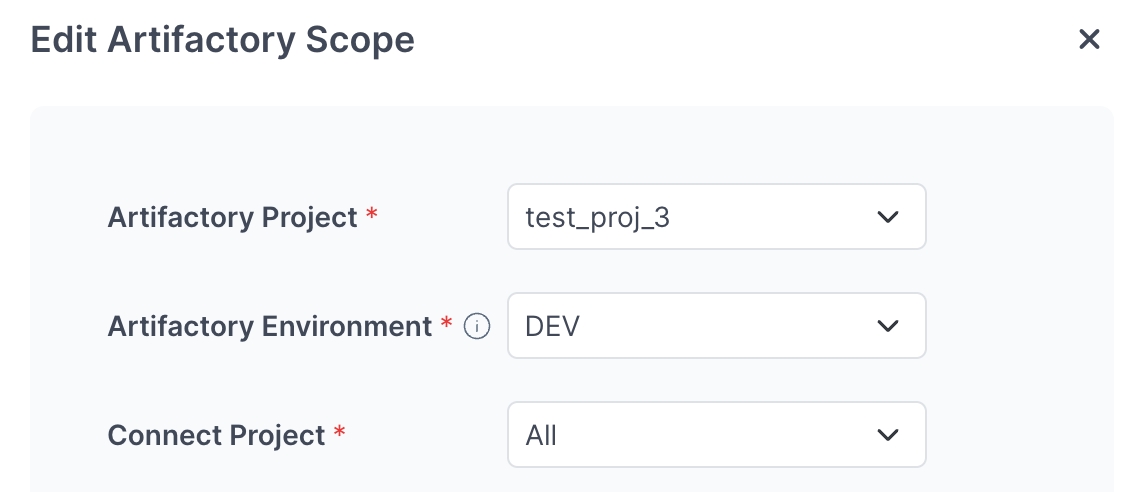
In Edit Artifactory Scope, enter your changes and save.
If you choose multiple Artifactory Projects, the value for Artifactory Environment will automatically be All.
If you want to select less than All environments, you can select only one Artifactory project.
If the registry you chose in Step 2 was of sub-type Edge, then you can only choose the Connect Projects in the scope. Artifactory Project and Environment will automatically be All and All.
Learn how to at once.