> For the complete documentation index, see [llms.txt](https://docs.connect.jfrog.io/llms.txt). Markdown versions of documentation pages are available by appending `.md` to page URLs; this page is available as [Markdown](https://docs.connect.jfrog.io/developers/api-reference/create-access-token.md).
# Create Access Token
You need an access token to use the JFrog Connect API. This page describes how to get tokens for Connect API v2.
For the JFrog Connect API v2, there are two types of access tokens, User (also called [identity tokens](https://jfrog.com/help/r/platform-api-key-deprecation-and-the-new-reference-tokens/so-why-did-jfrog-deprecate-api-keys)) and Custom (also called scoped tokens). This increases the system security by enabling you to construct an access token that is very specific to the permissions allowed.
The tokens you create in Connect are valid only in Connect. However, if you create an admin token in Artifactory, you can use it in the Connect API v2.
{% hint style="success" %}
**Important**: Use this page only if you have the old web UI. If you have the new UI, use [Create Access Token - New UI](/developers/api-reference/create-access-token-1.md).
{% endhint %}
### Access Tokens Tab
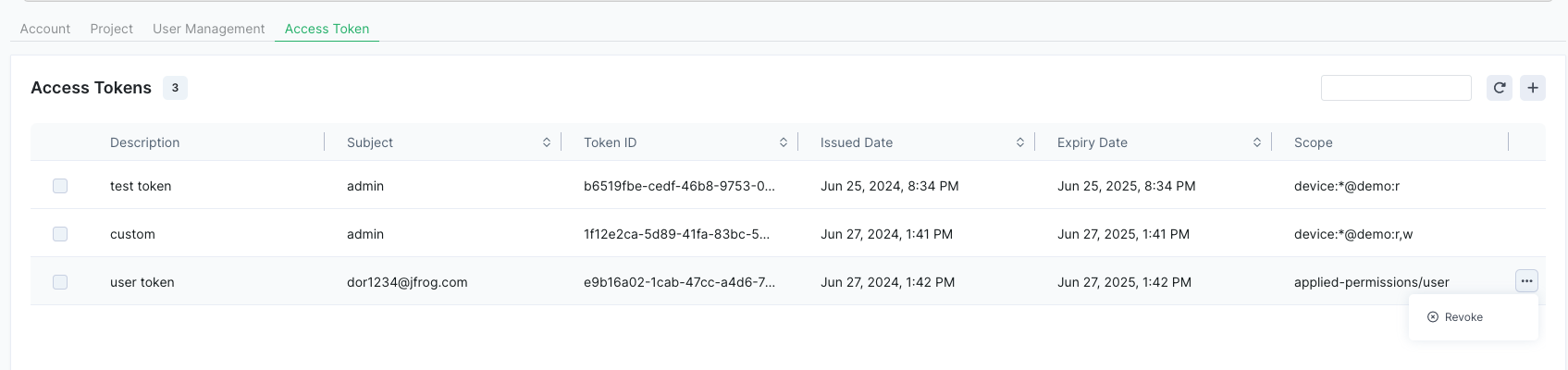
In the Connect Settings, the Access Tokens tab shows a listing and brief description of the access tokens created in your account.
The Access Tokens table includes the following information in the columns:
* **Description**: One or more words indicating what the token is for.
* **Subject**: The user for whom the token was created.
* **Token ID**: The UUID of the token.
* **Issued Date**: The date and time the token was created.
* **Expiry Date**: The date and time the token will expire.
* **Scope**: An indication of the permissions allowed by the token.
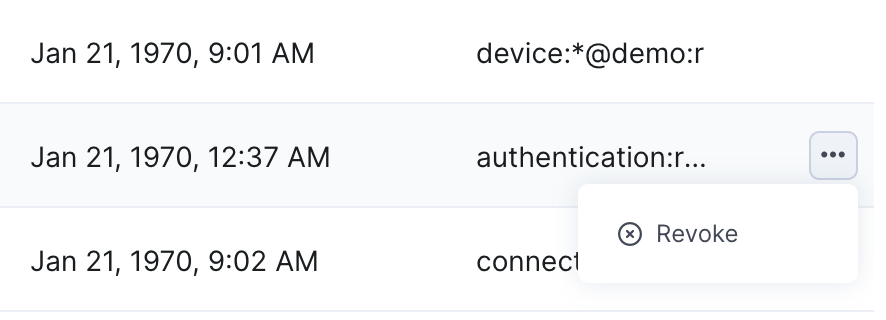
To revoke a token, click the three dots at the end of the relevant row and click Revoke.
### Token Scopes
You can create the following types of access tokens:
* **User**: Also called an *identity token* or a *user-scoped token*. This token provides access according to the permissions defined for the user in the User Permissions page. This kind of token can be created in Connect or in the JFrog Platform.
* **Custom**: These tokens, also known as *scoped tokens*, have permissions that are customized for a specific purpose. For example, the token allows access by any Connect user, but allows access to certain resources (e.g., a device or a project) and functions (e.g., read or write) only, and not to others. These tokens can be created only in Connect and only by an [administrator](https://docs.connect.jfrog.io/administration/settings/user-management) user.
## Create User Token
To create a new token, do the following:
1. Go to Settings in the left navigation bar and click the **Access Tokens** tab.
2. In the Access tokens tab, click the **+** on the upper right and enter a **Description** and **Expiration Date** for the new token.
3. Under Token Scope, choose **User** and select the user from the dropdown list.
4. Generate the token.
## Create Custom (Device-Scoped) Token
To create a new token, do the following:
1. Go to Settings in the left navigation bar and click the **Access Tokens** tab.
2. In the Access tokens tab, click the **+** on the upper right and enter a **Description** and **Expiration Date** for the new token.
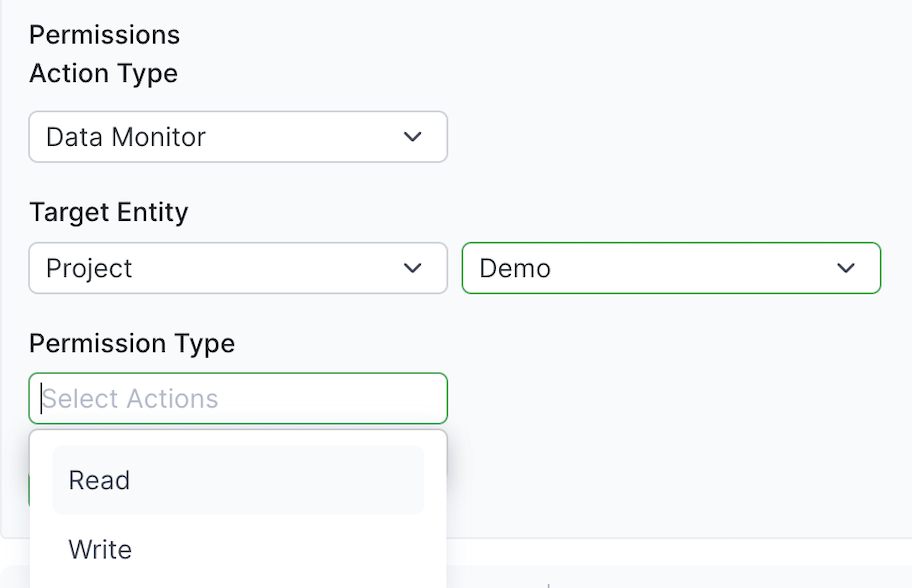
3. Under Token Scope, choose **Custom** and choose a **Permissions Action Type**. (Device is currently the only option.) Permissions Action Type enables access to a certain feature or set of features in Connect, such as device metadata.
4. Choose the **Target Entity** and the **Permission Type** from the respective lists. The target entity can be either Project or Device.
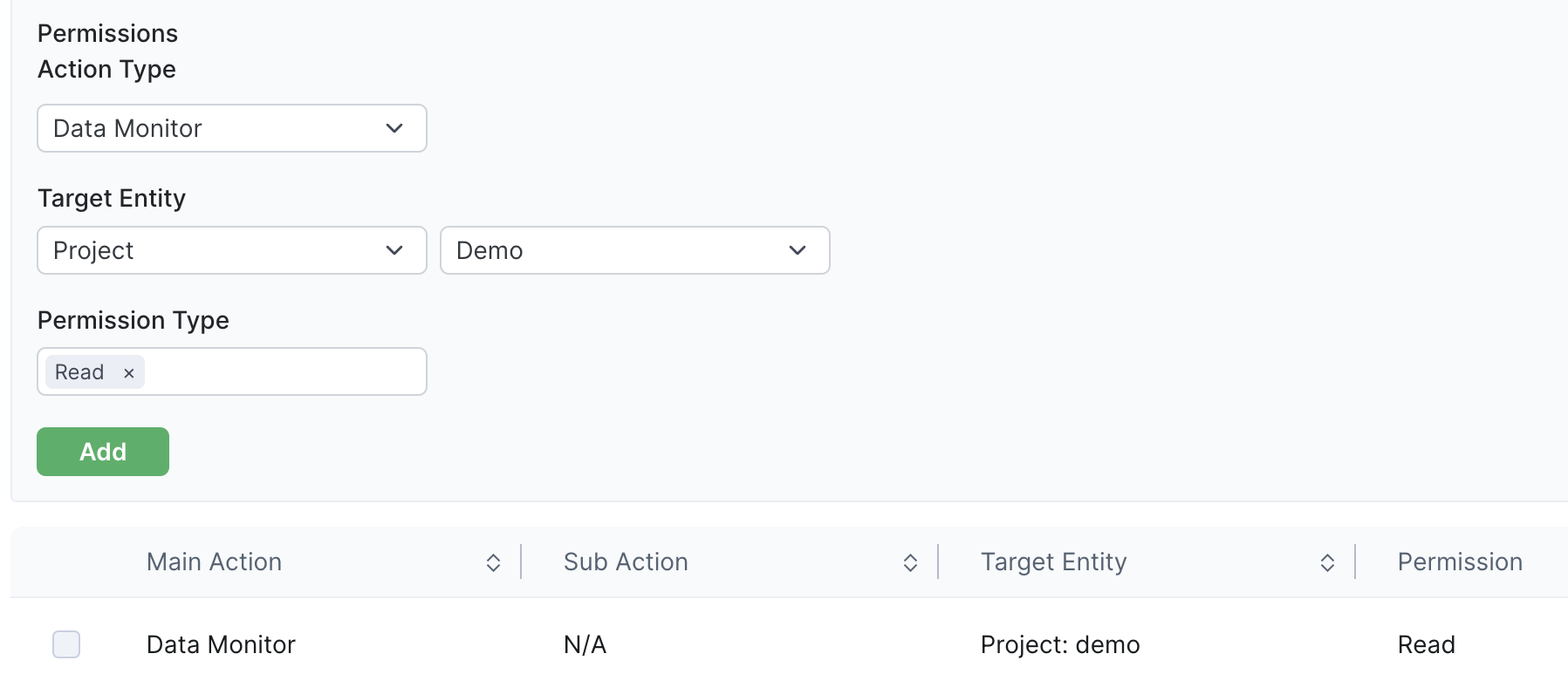
5. Click **Add**. The permission will be added to the table in the lower part of the page. You may create multiple permissions for the token, and each permission will appear as a row in the table. Once you have created all the necessary permissions, generate the token.
## Generated Token
After you generate the new access token, it will be displayed.
{% hint style="info" %}
**Important**:
* For security reasons, the new token generated will not be stored. Ensure that you copy the token and keep it in a safe place. Once you close the token display window, it will not be available again.
* Do not expose the token in your API request tool. It is highly recommended to use an API tool that handles the token securely (for example, it uses a variable for your token), and not to expose the token directly.
{% endhint %}
## What’s Next?
Learn about the [Connect API v2](/developers/api-reference/connect-api-reference.md) and the details of all the API requests you can use.
---
# Agent Instructions
This documentation is published with GitBook. GitBook is the documentation platform designed so that both humans and AI agents can read, navigate, and reason over technical content effectively. Learn more at gitbook.com.
## Querying This Documentation
If you need additional information that is not directly available in this page, you can query the documentation by asking a question.
Perform an HTTP GET request on the following URL with the `ask` and `goal` query parameters:
```
GET https://docs.connect.jfrog.io/developers/api-reference/create-access-token.md?ask=&goal=
```
`ask` is the immediate question: it should be specific, self-contained, and written in natural language.
`goal` is what the user is ultimately trying to achieve, the reason they need the answer. Sharing it helps GitBook give you a better, more relevant answer. A goal is most helpful when it describes the outcome the user wants rather than restating the question. For example, with `ask=how do I create an API token`, a goal like `automate deployments from our CI pipeline` lets GitBook tailor the answer to that use case.
The response will contain a direct answer to the question and relevant excerpts and sources from the documentation.
Use this mechanism when the answer is not explicitly present in the current page, you need clarification or additional context, or you want to retrieve related documentation sections.