> For the complete documentation index, see [llms.txt](https://docs.connect.jfrog.io/llms.txt). Markdown versions of documentation pages are available by appending `.md` to page URLs; this page is available as [Markdown](https://docs.connect.jfrog.io/features-new-ui/tools/get-alerts/create-channel/set-webhook.md).
# Set Webhook
Webhooks enable you to send JFrog Connect device alerts to a third-party application or to an application of your own. This page describes how to configure a webhook.
You can use webhooks to post requests to your own application (e.g., your in-house dashboard application) or to a third-party application. The schema consists of a JSON payload that contains the device details along with custom headers you choose.
When your webhook channel is activated, if the channel does not receive any request within three attempts, it will be marked as invalid and will stop further attempts.
## Set a Webhook
To use a webhook as a channel for receiving [alerts](/features-new-ui/tools/get-alerts.md), do the following:
1. Start the procedure to [create a channel](/features-new-ui/tools/get-alerts/create-channel.md).
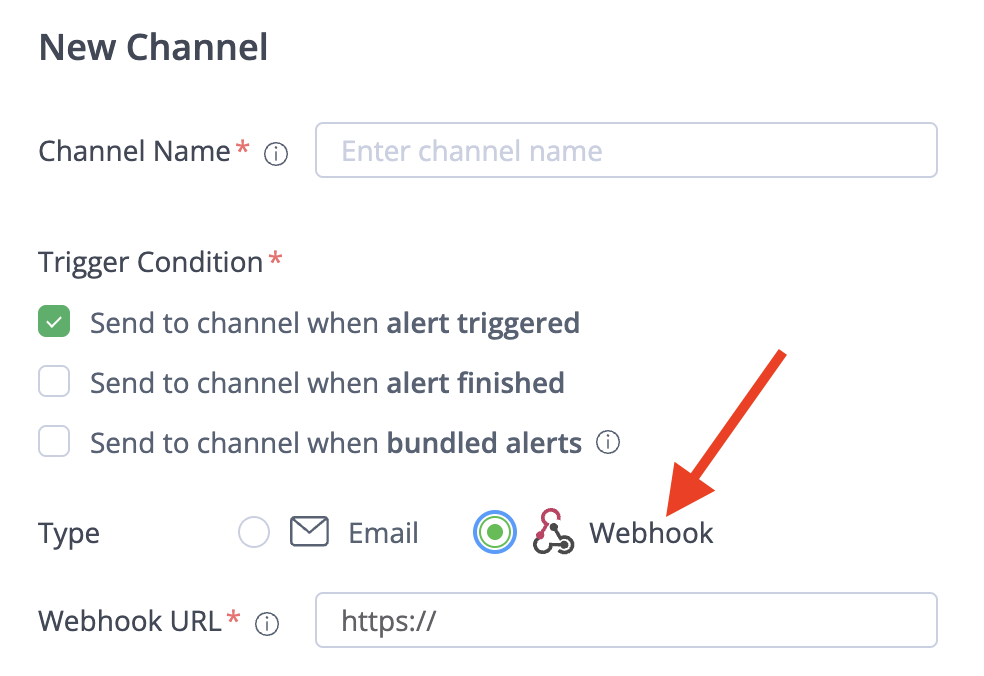
2. For Type, choose **Webhook** and enter the Webhook URL. This URL will receive post requests with the JSON payload you define.
3. Configure the payload schema as described below and save your settings.
### Payload Schema
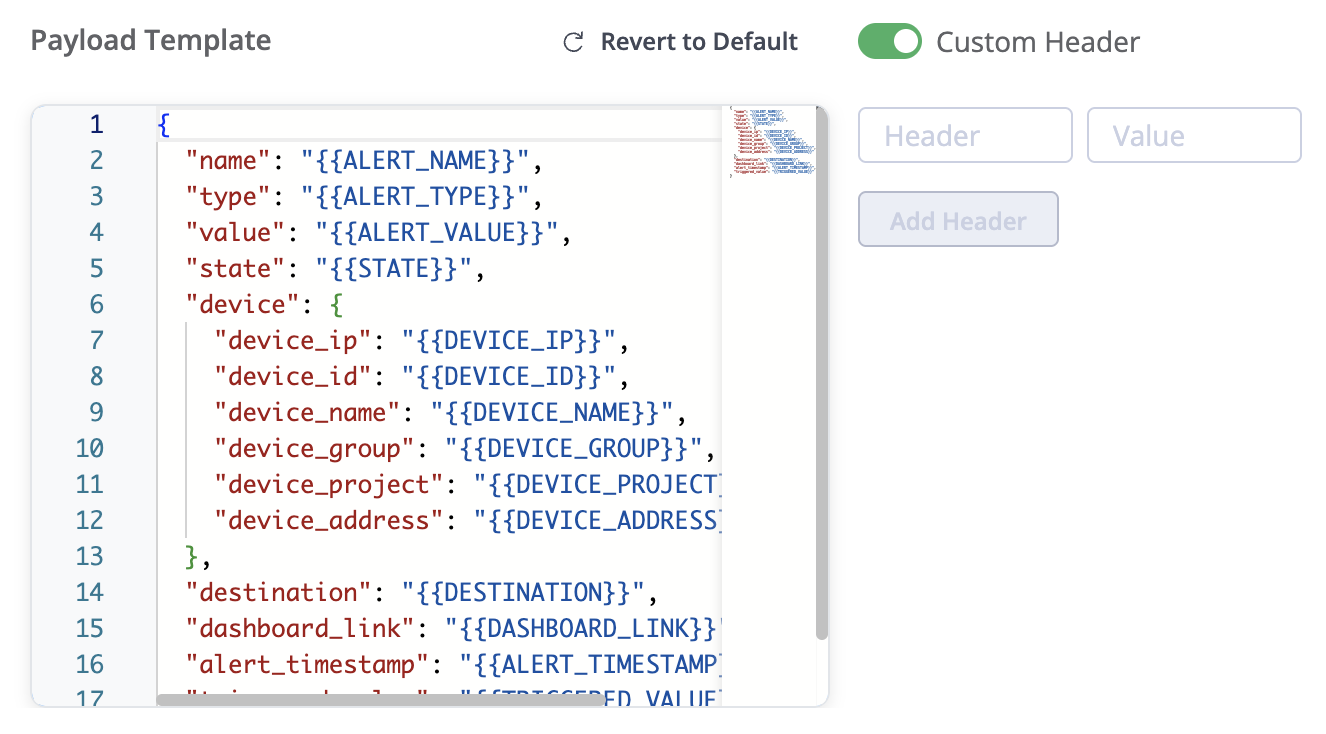
You may use the default schema, or you may create a custom JSON payload by defining your own schema.
The schema can contain custom parameters. You just need to define additional variables using the Connect syntax.
Below is the list of Connect variables that can be used in the schema.
| Variable | Value |
| ---------------------- | --------------------------------------------------------------------------------------- |
| "{{ALERT\_NAME}}" | The name of the alert. |
| "{{ALERT\_TYPE}}" | Alert monitor type: resources, application, or process |
| "{{ALERT\_VALUE}}" | The threshold value that triggers an alert. |
| "{{STATE}}" | Whether the alert was Triggered or Finished. |
| "{{DEVICE\_IP}}" | The last IP address of the device. |
| "{{DEVICE\_ID}}" | The alphanumeric identifier of the device. |
| "{{DEVICE\_NAME}}" | The name given to the device. |
| "{{DEVICE\_GROUP}}" | The group that the device belongs to. |
| "{{DEVICE\_PROJECT}}" | The project that the device belongs to. |
| "{{DEVICE\_ADDRESS}}" | The physical location (e.g., street address) according to the IP address of the device. |
| "{{DESTINATION}}" | The Webhook Channel URL. |
| "{{DASHBOARD\_LINK}}" | Platform link to see further information about the alert. |
| "{{ALERT\_TIMESTAMP}}" | The triggered or finished time of the alert. |
| "{{TRIGGERED\_VALUE}}" | The value of the parameter (e.g. CPU or disk space) that triggered the alert. |
### Bundled Alerts Schema
When bundled alerts are enabled in the channel configuration, the following variables can be used in the schema.
| Variable | Value |
| ------------------ | ---------------------------------------------------------------------------------- |
| "{{ALERT\_NAME}}" | List of alert names in the alert bundle. |
| "{{ALERT\_TYPE}}" | List of alert monitor types (resources, application, process). |
| "{{ALERT\_VALUE}}" | List of values of the parameter (e.g. CPU or disk space) that triggered the alert. |
| "{{STATE}}" | List of states (Triggered or Finished) for the devices. |
| "{{DEVICE\_NAME}}" | List of IP addresses of the devices. |
| "{{DEVICE\_ID}}" | List of device identifiers. |
### Custom Headers
You can add custom request headers for use in your schema. The default request header (i.e., if you don’t add any custom headers) in Connect is:
Content-type: application/json.
## Preconfigured Webhook Templates
You can use preconfigured webhook templates for third-party products. Below are examples for Slack and PagerDuty.
### Slack
Reach out to Slack to configure your application and receive a unique webhook URL. For more information, see [Sending Messages using incoming Webhooks](https://api.slack.com/messaging/webhooks).[ ](https://api.slack.com/messaging/webhooks)When Slack is configured, you can use the URL provided as the webhook URL.
#### Example Slack Payload
```
{
"attachments":[{
"ts": "{{ALERT_TIMESTAMP}}",
"color": "#cc0000",
"title": ":frog: {{ALERT_NAME}}",
"fields":
[{
"short": false,
"title": "Alert Type",
"value": "{{ALERT_TYPE}}"
},
{
"short": true,
"title": "Configuration value",
"value": "{{ALERT_VALUE}}"
},
{
"short": true,
"title": "Actual value",
"value": "{{TRIGGERED_VALUE}}"
},
{
"short": true,
"title": "Device name",
"value": "{{DEVICE_NAME}}"
},
{
"short": true,
"title": "Device id",
"value": "{{DEVICE_ID}}"
},
{
"short": true,
"title": "Project",
"value": "{{DEVICE_PROJECT}}"
},
{
"short": true,
"title": "Group",
"value": "{{DEVICE_GROUP}}"
},
{
"short": true,
"title": "Device location",
"value": "{{DEVICE_ADDRESS}}"
},
{
"short": true,
"title": "IP Address",
"value": "{{DEVICE_IP}}"
}],
"pretext": "You have a {{STATE}} alert",
"mrkdwn_in": ["text"],
"title_icon": "https://findicons.com/files/icons/624/zoom_eyed_creatures/128/frog.png",
"title_link": "{{DASHBOARD_LINK}}"
}]
}
```
### PagerDuty
To set up a webhook to PagerDuty, you need to create a service with event API integration. For more information, see [PagerDuty Services and Integrations](https://support.pagerduty.com/docs/services-and-integrations).
When the service is created, you will receive a service key. Use the service key as the value for `routing_key`, as shown in the example below.
#### Example PagerDuty Payload
```
{
"payload": {
"summary": "You have a {{STATE}} alert - {{ALERT_NAME}} for device {{DEVICE_NAME}}",
"timestamp": "2015-07-17T08:42:58.315+0000",
"source": "monitoringtool:cloudvendor:central-region-dc-01:852559987:cluster/api-stats-prod-003",
"severity": "info",
"component": "postgres",
"group": "{{DEVICE_GROUP}}",
"class": "{{ALERT_TYPE}}",
"custom_details":
{
"Device name": "{{DEVICE_NAME}}",
"Device ID": "{{DEVICE_ID}}",
"Device project": "{{DEVICE_PROJECT}}",
"Device group": "{{DEVICE_GROUP}}",
"Device location": "{{DEVICE_ADDRESS}}",
"Device IP Address": "{{DEVICE_IP}}",
"Alert name": "{{ALERT_NAME}}",
"Alert type": "{{ALERT_TYPE}}",
"Configuration value": "{{DEVICE_PROJECT}}",
"Actual value": "{{DEVICE_GROUP}}"
}
},
"routing_key": Your SERVICE_KEY,
"dedup_key": "{{DEVICE_ID}}_{{ALERT_ID}}",
"images": [{
"src": "https://uploads-ssl.webflow.com/611ba30e0c70a64ebb003853/628a41f9136f611aa0a1ab6a_jfrog-logo.png",
"href": "https://example.com/",
"alt": "Dashboard"
}],
"links": [{
"href": "https://example.com/",
"text": "Dashboard"
}],
"event_action": "trigger"
}
```
## What’s Next?
Learn how to [get files](/features-new-ui/tools/remote-tools-overview/software-application-logs.md) from an edge device.
---
# Agent Instructions
This documentation is published with GitBook. GitBook is the documentation platform designed so that both humans and AI agents can read, navigate, and reason over technical content effectively. Learn more at gitbook.com.
## Querying This Documentation
If you need additional information that is not directly available in this page, you can query the documentation by asking a question.
Perform an HTTP GET request on the following URL with the `ask` and `goal` query parameters:
```
GET https://docs.connect.jfrog.io/features-new-ui/tools/get-alerts/create-channel/set-webhook.md?ask=&goal=
```
`ask` is the immediate question: it should be specific, self-contained, and written in natural language.
`goal` is what the user is ultimately trying to achieve, the reason they need the answer. Sharing it helps GitBook give you a better, more relevant answer. A goal is most helpful when it describes the outcome the user wants rather than restating the question. For example, with `ask=how do I create an API token`, a goal like `automate deployments from our CI pipeline` lets GitBook tailor the answer to that use case.
The response will contain a direct answer to the question and relevant excerpts and sources from the documentation.
Use this mechanism when the answer is not explicitly present in the current page, you need clarification or additional context, or you want to retrieve related documentation sections.