> For the complete documentation index, see [llms.txt](https://docs.connect.jfrog.io/llms.txt). Markdown versions of documentation pages are available by appending `.md` to page URLs; this page is available as [Markdown](https://docs.connect.jfrog.io/features-new-ui/deployments/update-flow/step-types/run-script.md).

# Run Script

You might have several reasons to use the Run Script step type, such as preparing the edge devices for installing a new software version or doing some special tasks after a version has been received. You may also have scripts that help to resolve issues in a software version that is running on the device.

### Example: Update Binaries on Device

<table><thead><tr><th width="258">Actions (in order)</th><th>Task</th></tr></thead><tbody><tr><td>Run Command</td><td>Copy and save device-specific configuration files</td></tr><tr><td>Download Artifacts</td><td>Pull your update binaries from Artifactory</td></tr><tr><td>Run Command</td><td>Unzip file with your binary artifacts</td></tr><tr><td>Run Command</td><td>Change user permissions for your application</td></tr><tr><td>Run Script</td><td>Verifies configuration and runs tests.<br>If failed, rollback entire update (i.e., runs <a href="/pages/FUkpEz5yRtncfxcCQIFH">general rollback</a>)</td></tr><tr><td>Run Command</td><td>Restart service that runs your application</td></tr></tbody></table>

## Prerequisites

* JFrog Connect account and at least one device registered.
* A script file ready for deployment.
* In the [Create Update Flow](/features-new-ui/deployments/update-flow.md) procedure, completed through Step 3.

## Add a Step and Configure the Step Type

To add a step and configure the step type you have chosen, do the following:

1. In the Create New Flow page, click **Add Step**.
2. In the **Step Type** dropdown list, choose **Run Script**, give the step a **Step** **Name**, and create the step. You can change the step name afterwards if you need to.
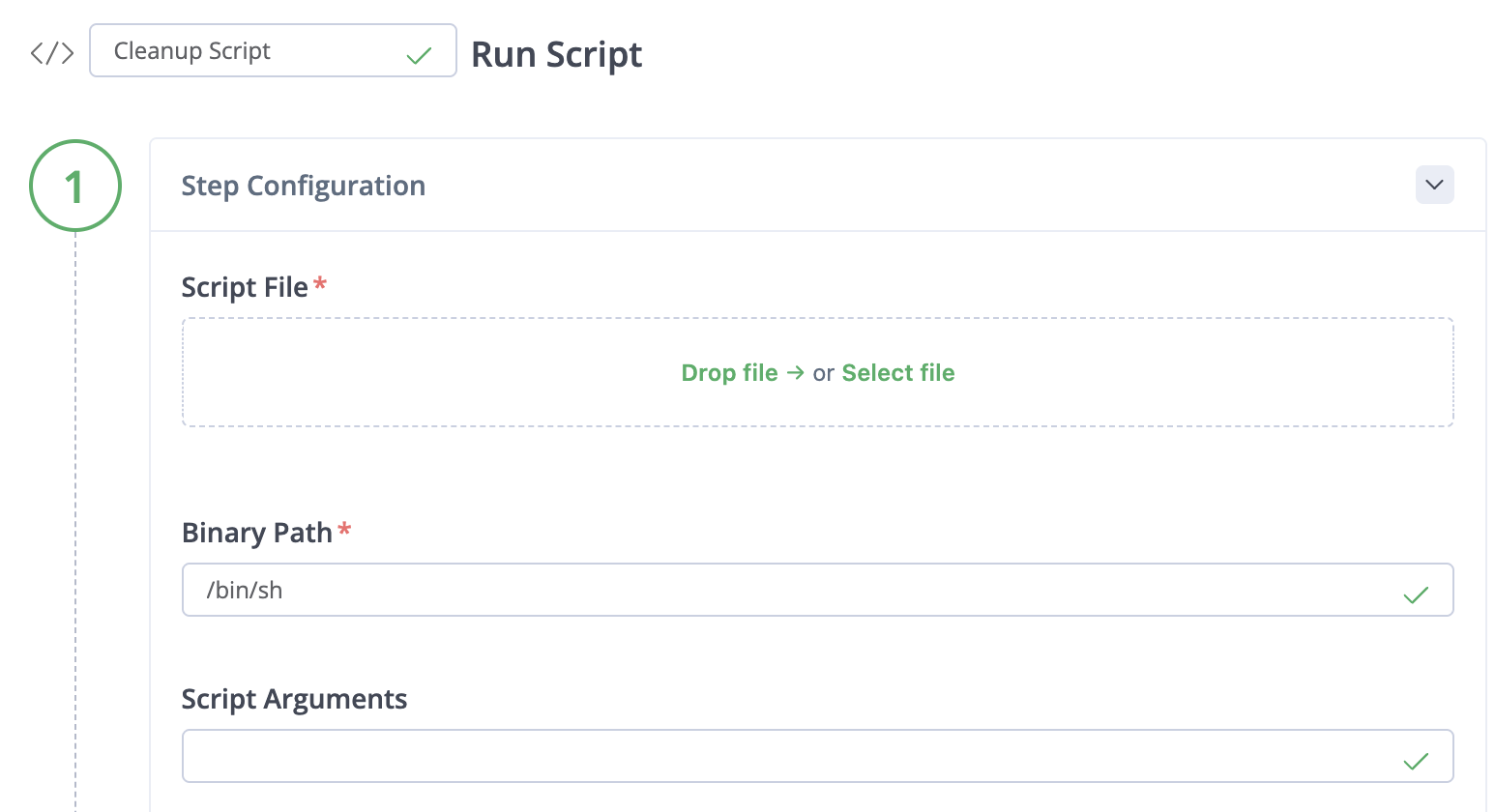
3. Enter the following information:
   * **Script File:** Enter (drag and drop, or browse) the script file in the script box.
   * **Binary Path**: The path on the device where the script should run.
   * **Script Arguments**: The values required for script arguments.

<div align="left"><figure><img src="/files/5ejzsaRHutVscFFRRACb" alt="" width="563"><figcaption></figcaption></figure></div>

4. (Optional) Configure your [On Failure](/features-new-ui/deployments/update-flow/on-failure-and-rollback.md) policy and instructions for rolling back.
5. Save your step configuration.

You can add more steps to the workflow.

## What’s Next?

Learn how to deliver one or more files to your client devices using the [Deploy Files](/features-new-ui/deployments/update-deployment.md) step type.


---

# Agent Instructions
This documentation is published with GitBook. GitBook is the documentation platform designed so that both humans and AI agents can read, navigate, and reason over technical content effectively. Learn more at gitbook.com.

## Querying This Documentation
If you need additional information that is not directly available in this page, you can query the documentation dynamically by asking a question.

Perform an HTTP GET request on the current page URL with the `ask` query parameter:

```
GET https://docs.connect.jfrog.io/features-new-ui/deployments/update-flow/step-types/run-script.md?ask=<question>
```

The question should be specific, self-contained, and written in natural language.
The response will contain a direct answer to the question and relevant excerpts and sources from the documentation.

Use this mechanism when the answer is not explicitly present in the current page, you need clarification or additional context, or you want to retrieve related documentation sections.
